 Studio
Monthly
One payment each month.
$12.99 /month
$12.99 billed every month.
Every Studio feature.
Available on Mac
Tissyo Studio · for Mac
Show the task once. The zoom follows your clicks, and every click becomes a step in the guide. For a class, a training session or your app demo.
14-day free trial, then $12.99/month or $89.99/year. Nothing is charged during the trial.
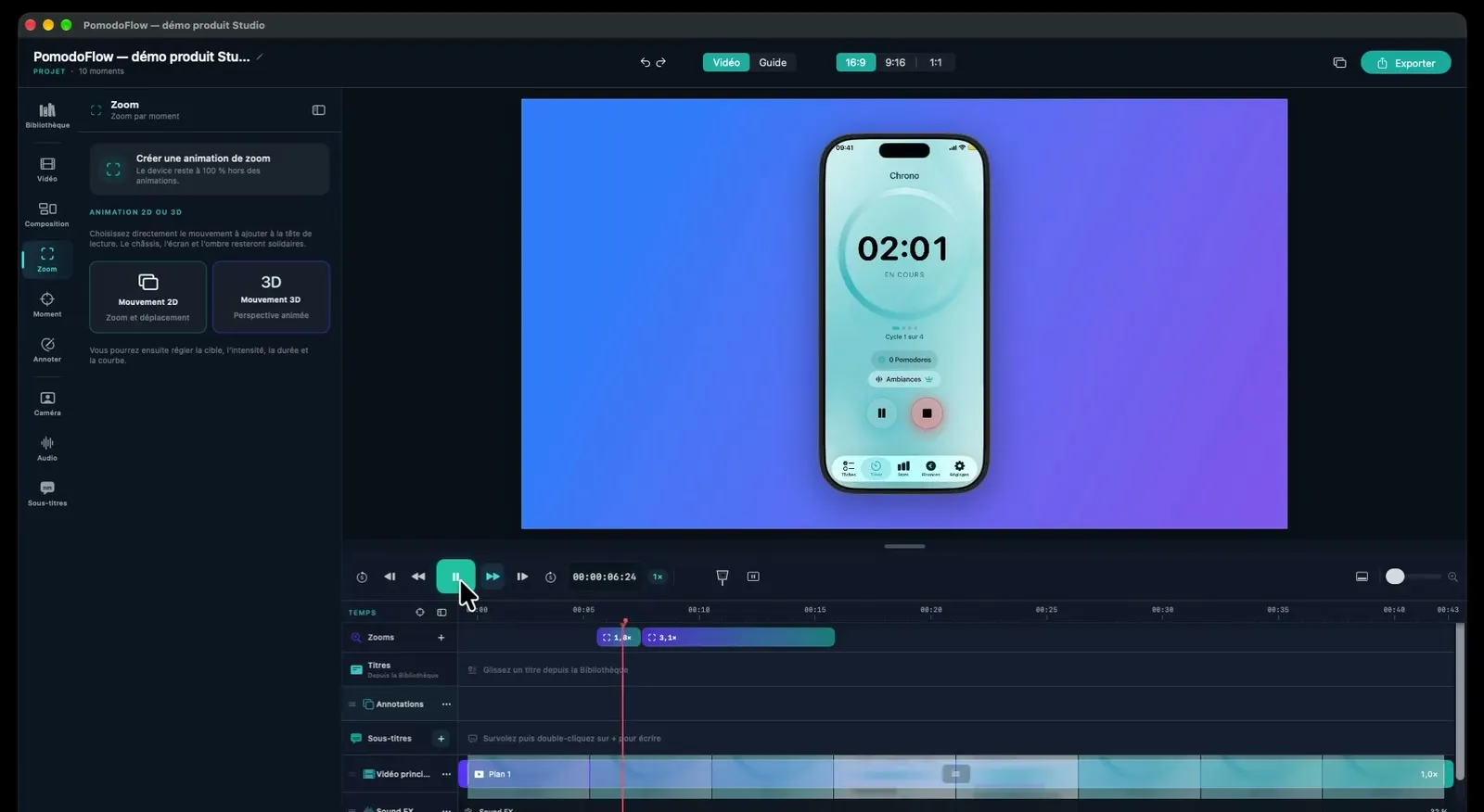
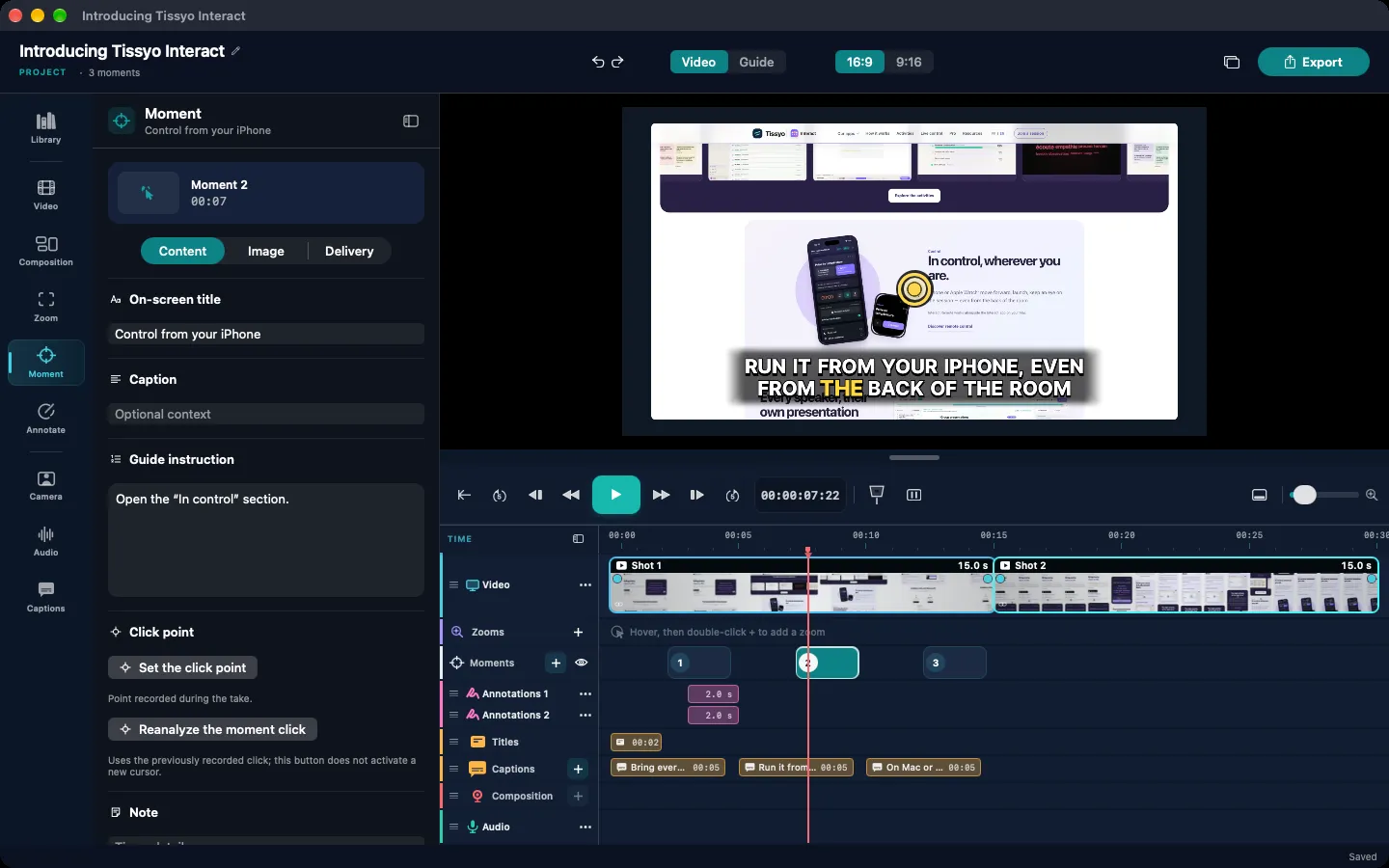
Record the task, polish the explanation, choose your format.
Choose a screen, a window or a region. Add your voice and your webcam to walk viewers through the demonstration.
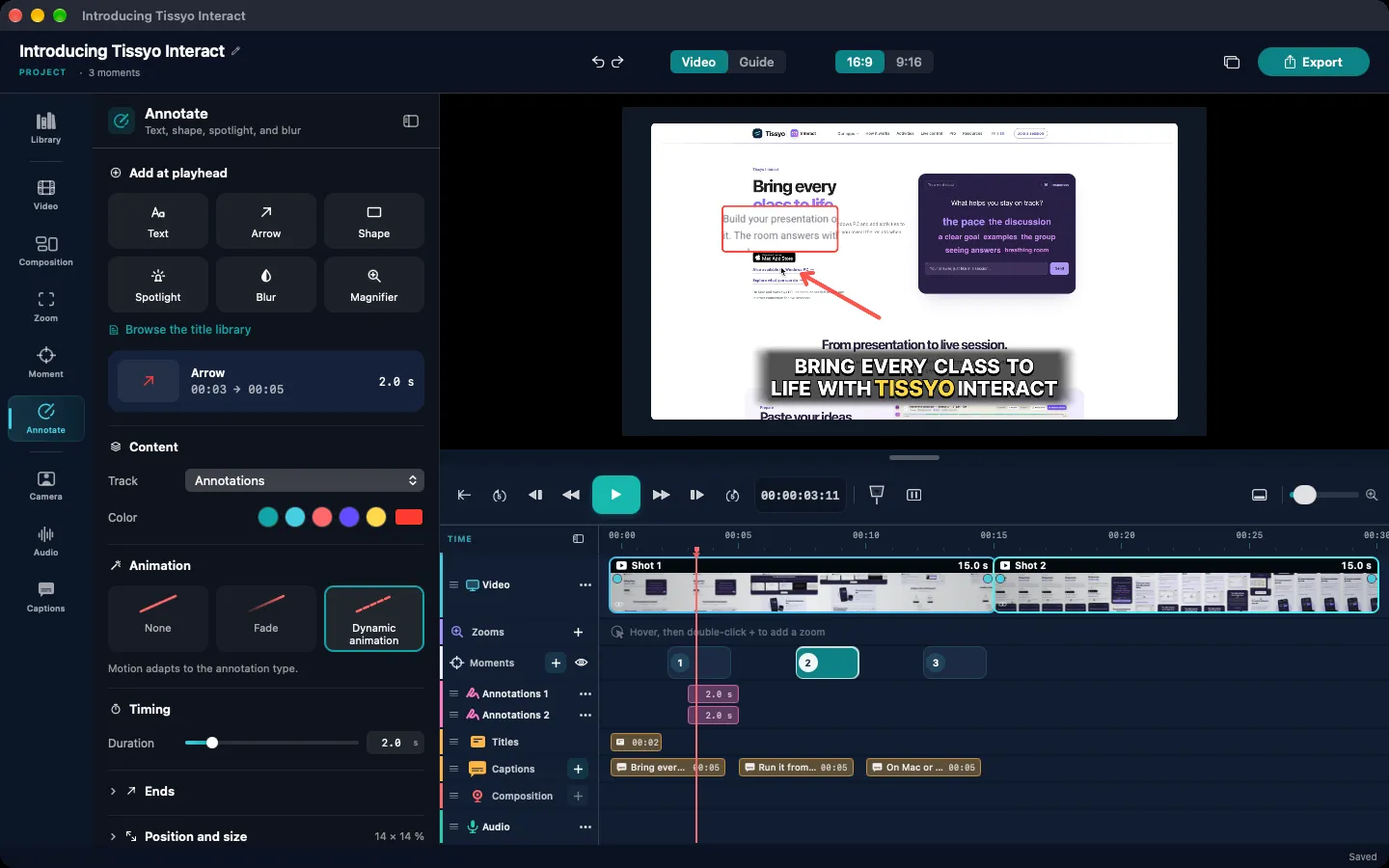
Adjust zooms, annotations and staging.
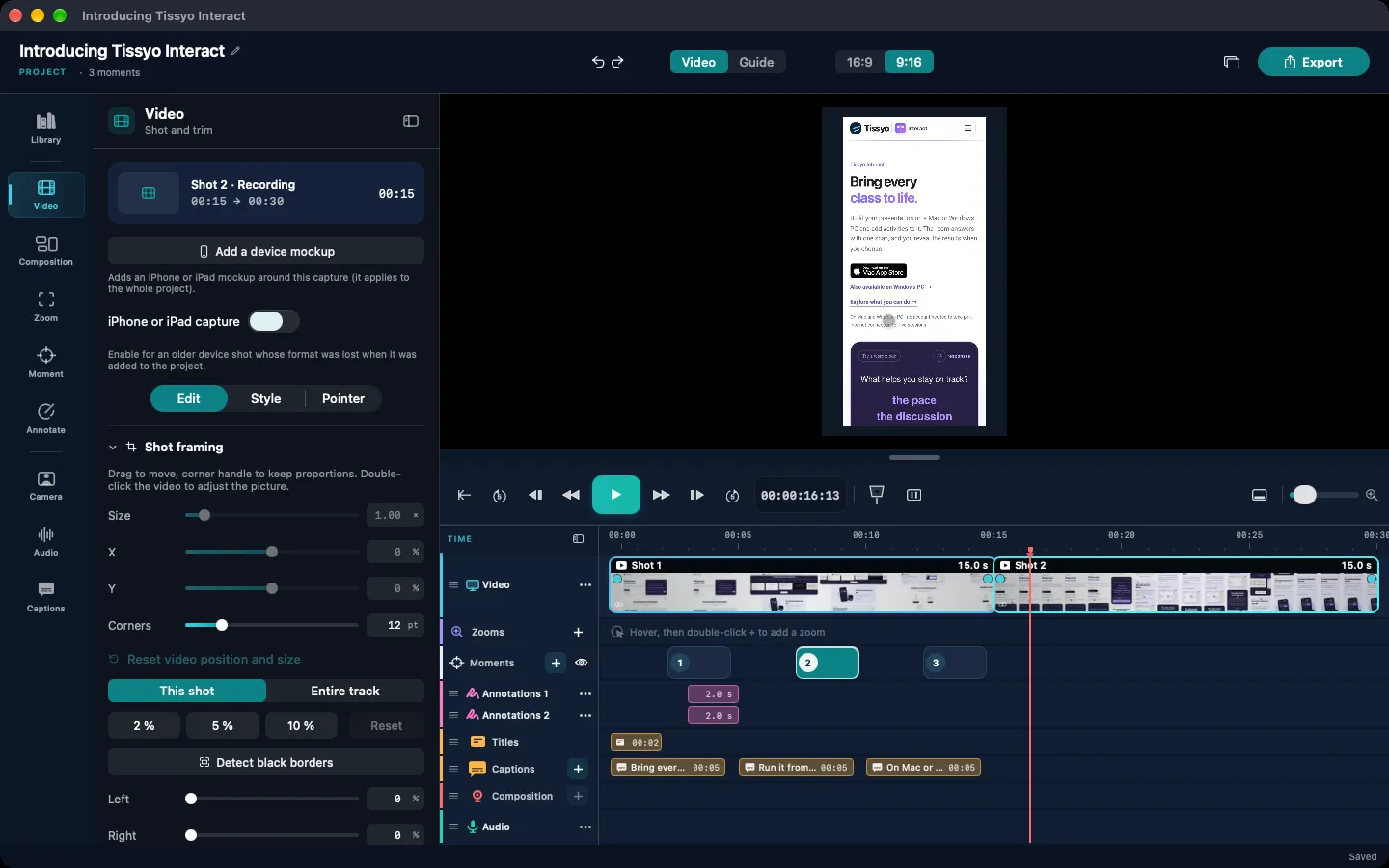
The same moments become the steps of your guide. Export the format that suits your audience.MP4 video · Animated GIF · PDF or Word guide · PNG images
Monday, 9:10. “Can you show me again where to export?” You record the task once. The link goes out with the video for those who watch, and the PDF guide for those who skim.
The pace of your video
Refine titles, annotations, captions and tracks on the timeline, all in one place.
ZoomsReframe or remove them in one move.
TimelineFine-tune the pace and the details.
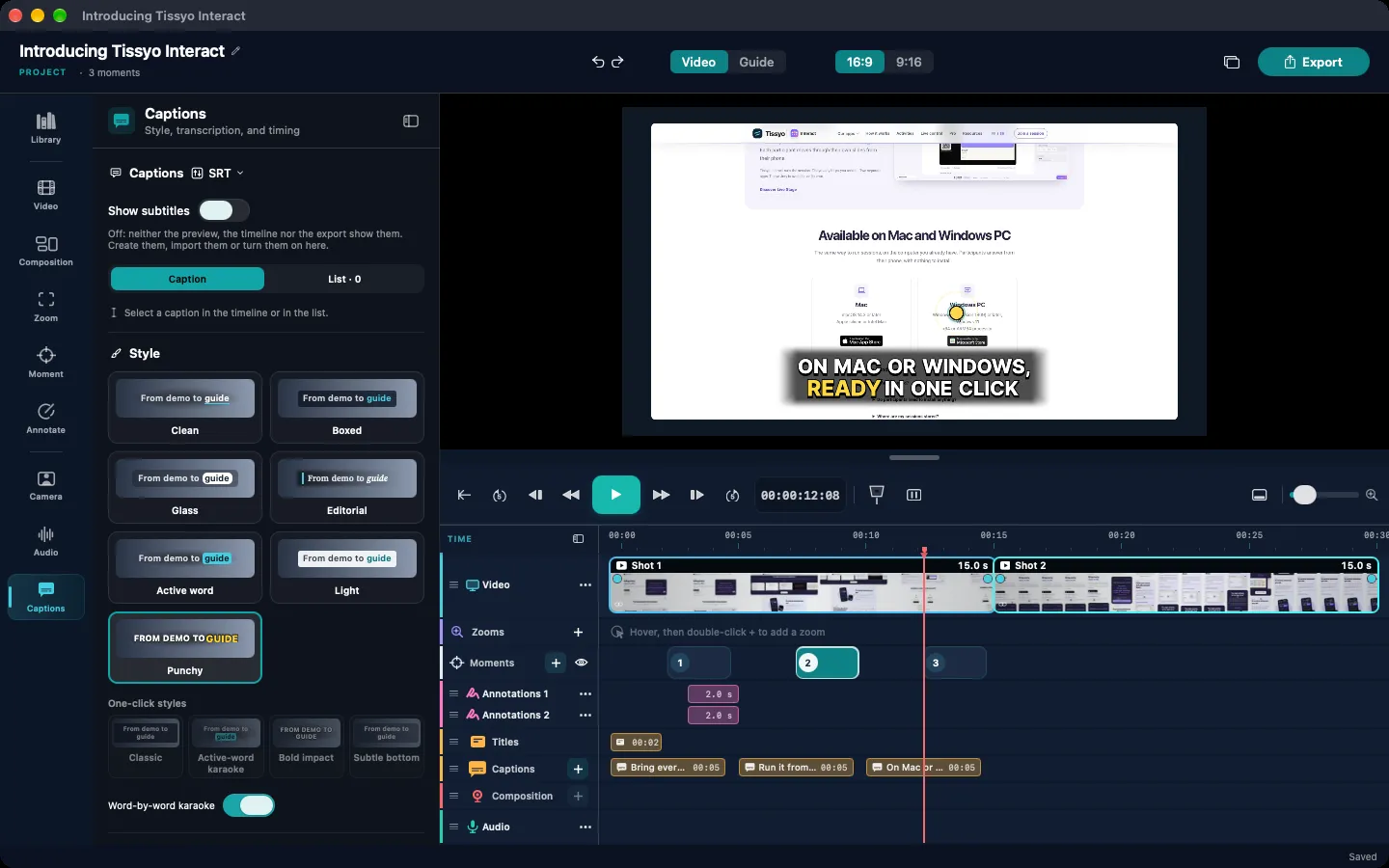
Product demos and guided tours
Present your app, guide a first look or create a tutorial. Zooms are placed as soon as the recording ends; you adjust them on the timeline. 3D motion adds depth to your capture so your product looks its best.
New · 3D mockups
Show your app in 3D iPhone and iPad mockups, in Apple’s official colours.
Presentation and step-by-step guide
Adjust the tracks, reframe the webcam and rework the composition after recording. Keep attention on your explanation.
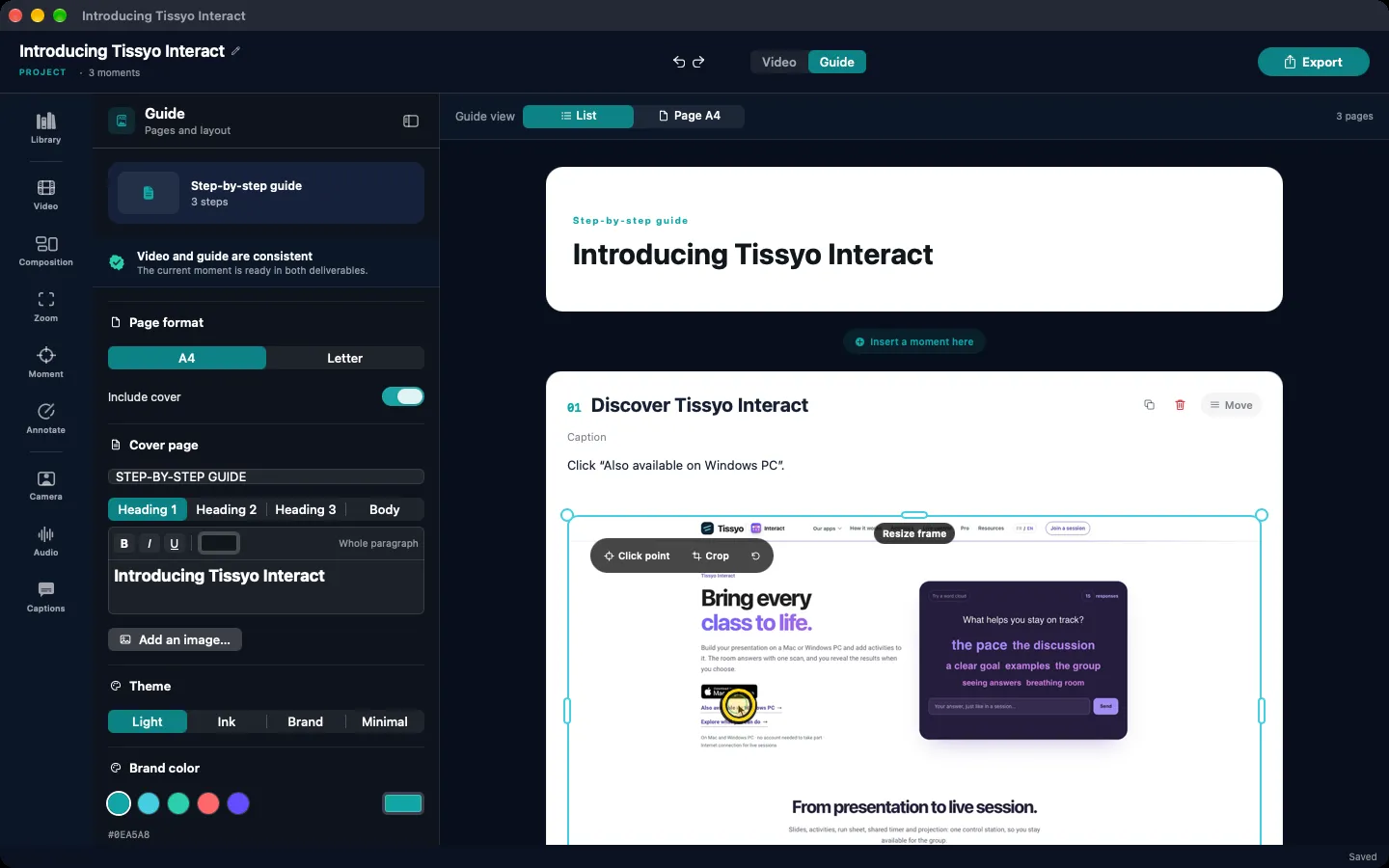
Turn the useful moments into steps your audience can follow. Edit titles, instructions, notes and images in the guide editor.
Ready for your audience
Share your video as Full HD MP4 (16:9 or 9:16), a sequence as a GIF, a guide as PDF or Word, or PNG images. Several formats in one click.
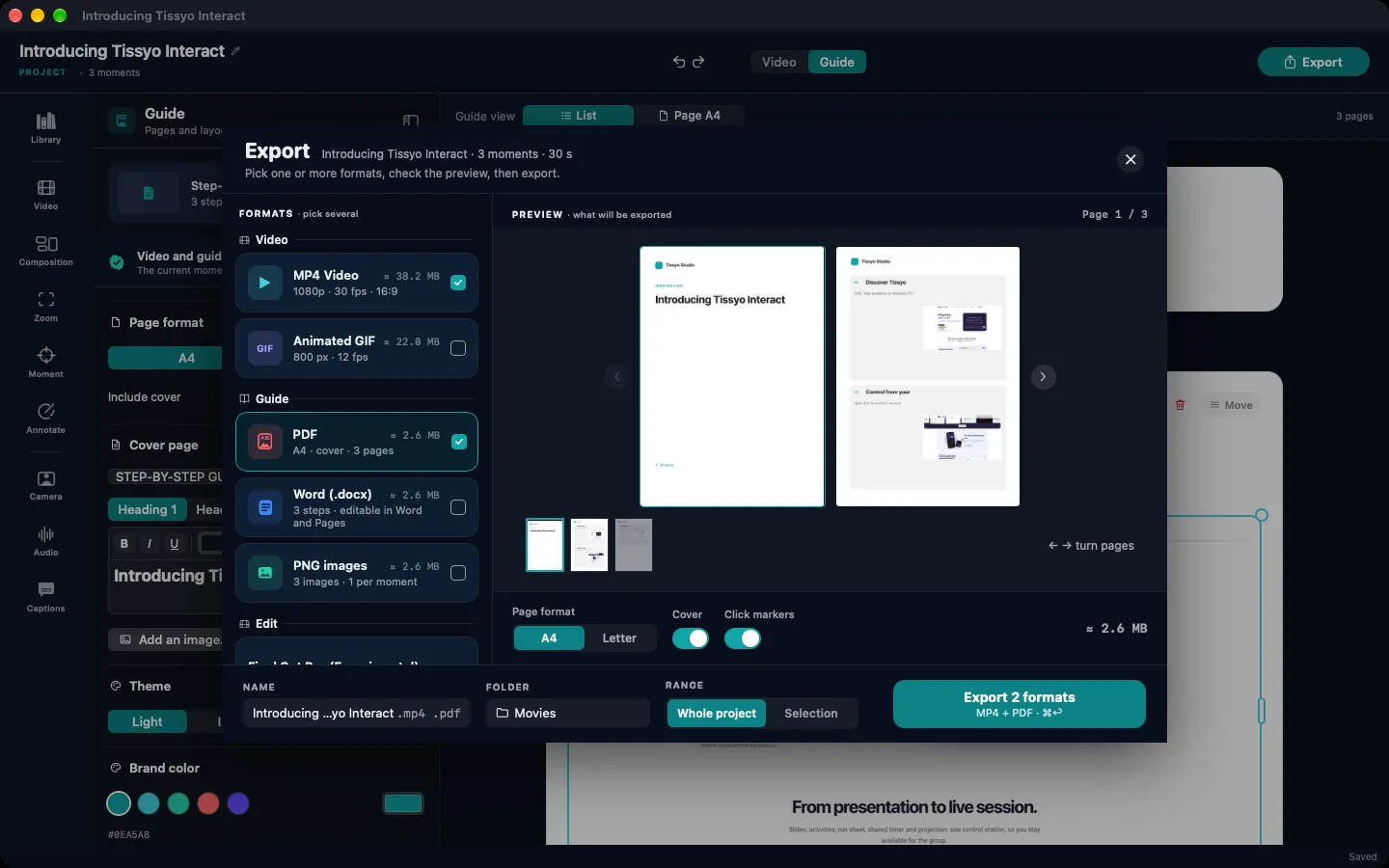
The same recording becomes a guide as a list or A4 pages, ready to export as PDF, Word or PNG.
You can always open and export your projects.
The 14-day trial is free, with no charge. After that, the plan you chose ($12.99/month or $89.99/year) starts, unless you cancel in your Apple account settings at least 24 hours before the trial ends.
MP4 video in Full HD, 16:9 or 9:16, animated GIF, PDF or Word guide, PNG images.
They are generated from your voice; the available languages depend on your Mac and its macOS version.
A 14-day free trial with every feature, then a monthly or yearly subscription. Even without a subscription, you can always open and export your projects.
One payment each month.
$12.99 billed every month.
Every Studio feature.
Available on Mac
About $7.50/month.
$89.99 billed once, every year.
$65.89 saved over 12 months.
Available on Mac
Free trial: 14 days on Mac, 7 days on PC. The PC (Windows) version is in the works.
| Features | Mac | PC · coming soon |
|---|---|---|
| Recording | ||
| Screen, window or region | ✓ | ✓ |
| Microphone and webcam | ✓ | ✓ |
| Connected iPhone or iPad | ✓ | — |
| Editing | ||
| Multitrack timeline | ✓ | ✓ |
| Automatic zooms and manual adjustments | ✓ | ✓ |
| Annotations and titles | ✓ | ✓ |
| Captions generated from the voice | ✓ | ✓ |
| Caption translation | ✓ | — |
| Person cutout | ✓ | — |
| 3D iPhone and iPad mockups | ✓ | — |
| Video and guide | ||
| Step-by-step guide synced with the video | ✓ | ✓ |
| Editable guide titles, instructions, notes and images | ✓ | ✓ |
| Automatic guide summary | ✓ | — |
| Export | ||
| MP4 video and animated GIF | ✓ | ✓ |
| PDF or Word guide, PNG images | ✓ | ✓ |
| Project for DaVinci Resolve | ✓ | ✓ |
| Project for Final Cut Pro | ✓ | — |
Savings rounded against 12 monthly payments of $12.99 ($155.88). The monthly equivalent of the annual plan is not a monthly charge. Applicable prices are shown in the App Store.
Turn your screen capture into a clear, well-paced video to present a product, explain a task or guide your audience.
Step by step: the complete method for a video tutorial and its guide →
14-day free trial, then $12.99/month or $89.99/year. Nothing is charged during the trial.
Cookies and privacy
We respect your privacy.
We use cookies that are necessary for the site to work. With your consent, we also use audience measurement and advertising cookies. You can accept or reject these optional cookies at any time.
TissyoBot
Tissyo StudioBefore you start
The chat sends your question, the page you are viewing and the technical data required by Tissyo Support. Your email is requested only to notify you of a reply.
How your data is usedSearch Tissyo
Products, guides and help pages.
Press Enter to search · Esc to close