 Studio
In short: with Tissyo Studio, one Mac recording gives you both the video and its step-by-step guide. Recorded clicks help prepare the zooms and guide steps; you complete and review the text before exporting.
A software demonstration already contains the necessary material for a video and a guide. The problem usually comes from the process: recording the video, then redoing each step in writing.
Prepare a clean Mac screen recording
Use demonstration data rather than real customer or student information. Hide notifications, close unrelated windows and keep the recorded window at a stable size. Test the microphone level and rehearse the shortest path from the starting state to the result. You can capture the full screen, a window or an area, with your voice, the Mac audio and the webcam; each source stays separate and editable after capture.
Tissyo Studio is available on the Mac App Store. It is designed around one source recording rather than a separate recording and documentation pass.
Create guide steps from recorded clicks
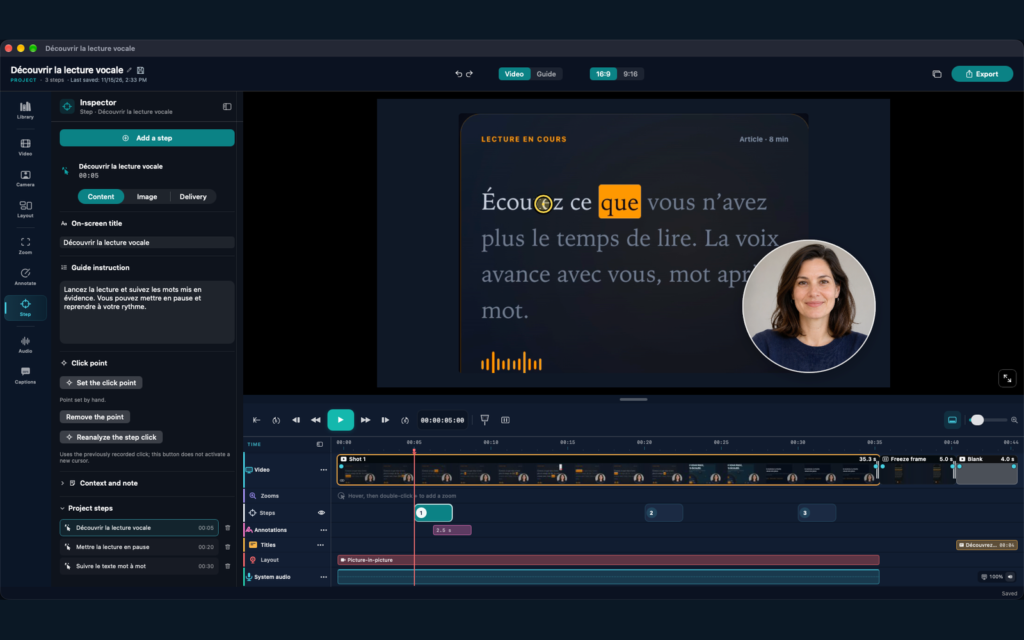
In Tissyo Studio, recorded clicks help create the guide steps and the zooms in the video. Each step can receive a title, an instruction, a note and an adjusted image. Zooms stay adjustable on the timeline.
Keep the video and guide aligned
The project is designed to keep the video and guide linked. Review the cuts, explanations and step order without rebuilding the documentation from scratch. Check the automatic subtitles as part of the tutorial.
Review before publishing
Check every menu name, shortcut and subtitle against the recorded version. Each guide image should show the state reached after the instruction. Remove personal data, temporary notifications and test credentials from both the video and still images before export.
Choose the right deliverable
The video is suitable for demonstrations and onboarding. A PDF guide offers a stable procedure that readers can consult at their own pace. Compare when to use MP4 video, animated GIF, or a PDF guide before choosing the final deliverable.
On Mac, you can also reuse the narration with Export → Transcription. Choose a text or Word file, with or without timecodes. This document contains the words spoken in the video; the PDF guide describes the steps to follow.
From recording to export in five steps
- Choose what to capture: the full screen, one window or an area of the screen.
- Record the demonstration: narrate as you click, at the pace of a real user.
- Adjust the video: refine the automatic zooms on the timeline, add titles, annotations and subtitles.
- Reread the guide: rename each step, clarify the instructions and add a note where a choice matters.
- Export: choose the video, animated GIF or PDF guide you need and export from the same project.
The result is a pair that stays in sync: the person who prefers to watch follows the video, and the person who prefers to read follows the guide, with the same steps and the same images in both.
What one recording produces
- A video: MP4 in Full HD, in 16:9 or 9:16, with subtitles, annotations, titles and backgrounds.
- An animated GIF: for a short action inside a message or a page.
- A guide: as a list or A4 pages, exported as PDF.
Several formats can be exported in one click.
Your first try: one task, two ways to follow it
Choose a task you often explain: sharing a folder, adding a spreadsheet row or changing a preference. Use example data without real contact details.
- Write the intended result. “By the end, you will know how to share this folder with a colleague.” Keep the demonstration focused on that task.
- Record the useful steps. Show the starting point, the necessary actions and the result. Review the guide afterwards: a click alone does not always explain why an action matters.
- Export an MP4 video and a PDF guide. Watch the video without your spoken explanation, then follow the PDF without watching the video. Add whatever either version needs to stand on its own.
The useful test: give both files to someone unfamiliar with the task. Ask where they hesitate, then improve that part of the project.
Prepare the text you need to enter during the demonstration with Tissyo Copy, so you can focus on explaining while recording.
FAQ
Do I need to write the guide after recording?
No. The steps come from your clicks. You only reread and adjust the titles, instructions, notes and images.
Can I edit my voice separately from the screen?
Yes. Microphone, Mac audio, webcam and screen stay separate sources that you can edit after capture.
How much does Tissyo Studio cost?
Every feature is included during the trial. On Mac, eligible Apple Accounts can start a 14-day free trial after confirming the subscription in the App Store. Nothing is charged during the trial, then it renews at $12.99/month or $89.99/year in the US unless cancelled. You can still open and export your projects without an active subscription.