 Studio
Tissyo Studio · Video editors
Prepare your screen recordings before the video edit
Cut, annotate and title from the keyboard. Then export an MP4, or send your titles to Final Cut Pro and DaVinci Resolve (experimental exports).
- Mac and Windows
- 64 shortcuts
- Final Cut Pro (Mac)
- DaVinci Resolve
From the keyboard
Cut, annotate and title without leaving the keyboard.
- 64shortcuts, all remappable
- 49title templates
- ×10zoom on the gesture
- 1080pMP4 at 30 frames per second
- JKLPlay backward, stop, play forward
- BCut at playhead
- ⌥ZAdd zoom at playhead
- ⌥KAdd / remove keyframe
- ⌥FInsert freeze frame
- ⇧ZFit the timeline to the window
- ⌥⌘←Move shot left
- ⌘EOpen Export
Default shortcuts on Mac; the full list also gives the Windows ones. Each can be changed in Settings.
How it works
From raw take to finished shot, in three moves.
 1Record the right takeA short take to check legibility, then the real one. Pause and stop from the keyboard.
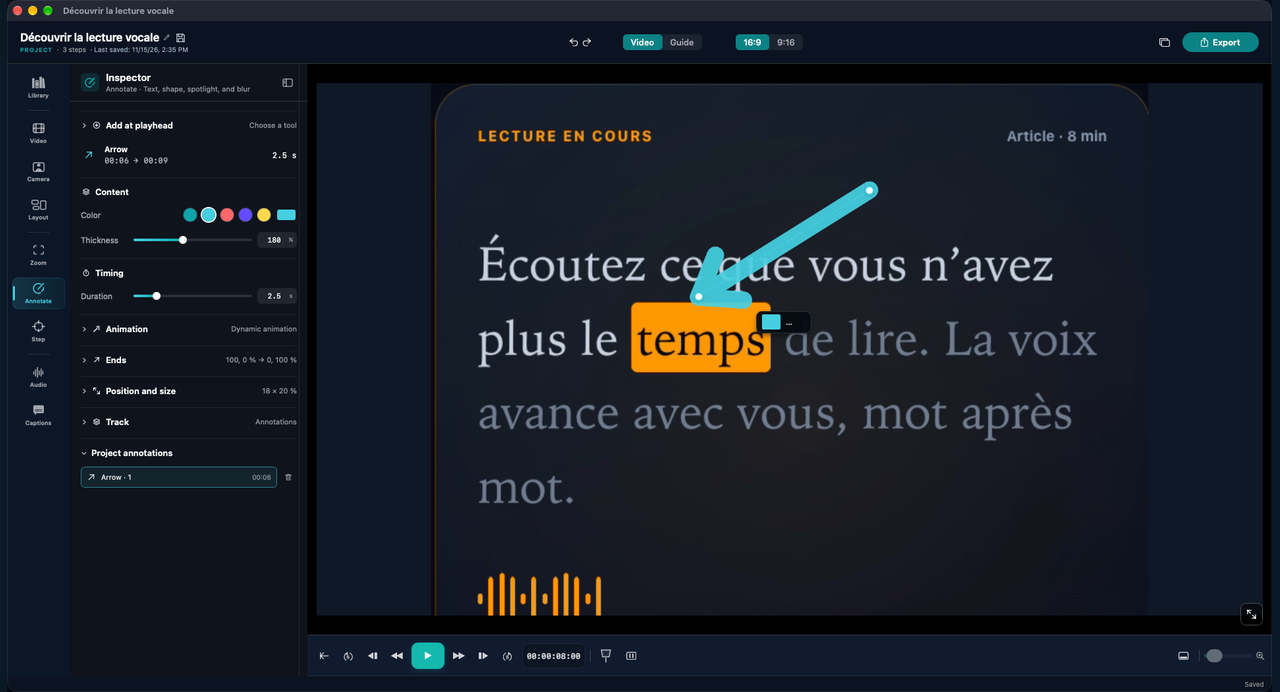
- 2Review, annotate, titleCut dead time at the playhead, add an arrow, a spotlight, a blur or one of the 49 titles.
- 3ExportAn MP4 at 1080p, or a project for Final Cut Pro or DaVinci Resolve (experimental).


To your editing software (experimental)
Your Tissyo titles, inside Final Cut Pro and DaVinci Resolve.
What comes through
- Animated Tissyo titles, editable text, fonts included (once the templates are installed)
- Captions as editable titles, with an SRT file alongside
- Annotations: arrows, rectangles and text as Tissyo templates
- The camera bubble and its shape
- The project media
What you redo
- Background, rounded corners and cursor: not exported (rebuild the background in DaVinci Resolve)
- Spotlight, magnifier and blur: a marker only
- Camera bubble in 9:16: unreliable in DaVinci Resolve
- Original resolution: turn on media copy to keep it
- Without the templates installed: plain text or markers
Platforms. Final Cut Pro: Mac. DaVinci Resolve: Mac and Windows, version 21 or later for the titles. In Resolve, open Workspace › Scripts › Tissyo Studio Import, then pick the Project.tissyo-resolve.json file in the exported folder. Always check the result before you edit; if you only need the picture, export an MP4.




Frequently asked questions
Does Studio replace a video editor?
What carries over to Final Cut Pro or DaVinci Resolve?
Are the editing exports reliable?
Can I export to Final Cut Pro from Windows?
How do I install the Tissyo titles in my editing software?
Keep going
Arrive at the edit with a take that’s already prepared.
Try Studio on Mac or Windows.
Explore other ways to use Studio
Record a software task once, then share the training video and a step-by-step guide learners can use after class.
Turn recurring tasks into process documentation with a reference video and a written SOP your team can follow.
Edit a landscape walkthrough for YouTube and reframe it vertically for short-form videos.
Show your app in use with a screen recording, titles and annotations. On Mac, stage the demo in a 3D iPhone or iPad mockup.