 Voice
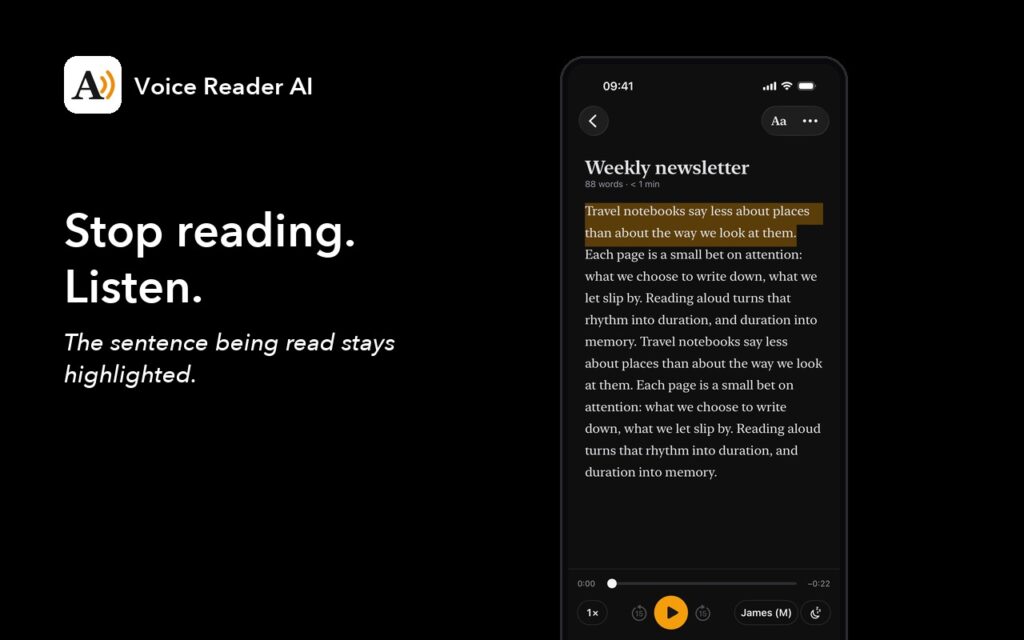
In short: For a quick one-off, iPhone Speak Screen reads what is on screen; for regular listening, share the article from Safari to a text to speech app that keeps it in a library. Voice Reader AI by Tissyo does this on iPhone, iPad and Mac.
You saved twelve articles this week. You read two. The rest are sitting in open tabs, bookmarks, or a “read later” app you never open. Sound familiar? The problem isn’t a lack of interest — it’s a lack of time to sit down and read.
Listening to articles changes the equation. Instead of carving out dedicated reading time, you can absorb articles while commuting, cooking, walking the dog, or working out. Your iPhone already has everything you need to turn web articles into audio — and with the right approach, you can build a listening habit that actually sticks.
Why Listen Instead of Read?
Reading demands your full visual attention. You need a screen in front of you, good lighting, and both hands free. That limits when and where you can consume content. Listening removes those constraints entirely.
Multitask without losing information
Listening to an article while driving, exercising, or doing housework lets you use time that would otherwise be lost. Research on auditory processing shows that people retain information well through listening, especially for narrative and informational content. You don’t have to choose between getting things done and staying informed.
Reduce eye strain and screen fatigue
If you work on a computer all day, the last thing your eyes need is more screen time. By the evening, reading a long article on your phone can feel like a chore. Switching to audio gives your eyes a break while keeping your mind engaged. This is especially helpful for people who experience headaches or dry eyes from extended screen use.
Make commuting productive
Whether you drive, take the subway, or ride a bus, commuting time adds up. The average one-way commute in the US is about 27 minutes — that’s nearly an hour each day. Listening to articles turns dead time into learning time. You can catch up on industry news, read long-form journalism, or go through blog posts you’ve been saving.
Built-in iOS Options: Speak Screen
Apple includes a feature called Speak Screen in iOS accessibility settings. You can enable it under Settings > Accessibility > Spoken Content > Speak Screen. Once turned on, swiping down with two fingers from the top of the screen makes your iPhone read everything visible on the display.
It works — but with notable limitations:
- It reads everything on screen — including ads, navigation menus, cookie banners, and sidebar text. The result is often a jumbled mess rather than a clean article reading.
- No article extraction — Speak Screen doesn’t know the difference between your article text and the website’s chrome. It reads it all, in order, from top to bottom.
- Limited voice quality — The default Siri voices work, but they can sound flat and mechanical over long listening sessions.
- No saved library — You can’t save articles for later listening. You need to have the page open and visible.
- No library or organization — There’s no way to save, queue, or manage multiple articles.
For quick one-off use, Speak Screen is fine. For regular article listening, you’ll want something more purpose-built.
How to Import Web Articles for TTS Listening
A dedicated text to speech app solves the problems Speak Screen can’t. The key feature to look for is article extraction — the ability to pull just the article text from a web page, leaving behind ads, menus, and clutter.
Here’s what a good article-listening workflow looks like:
- Find an article in Safari — Browse the web normally. When you find something worth reading, you don’t need to read it right away.
- Share it to your TTS app — Tap the share button in Safari and select your text to speech app. The app extracts the clean article text automatically.
- Listen whenever you want — The article is saved in your library. Play it immediately or save it for later.
This three-step process means you can curate articles throughout the day and listen to them during your next commute, workout, or walk.
Safari Integration and the Share Sheet
The iOS share sheet is the fastest way to send articles to a TTS app. When you’re viewing a web page in Safari, tapping the share icon (the square with an upward arrow) gives you a list of apps and actions. A well-designed TTS app appears in this list and can receive the page URL directly.
What happens behind the scenes matters. A good app will:
- Download and parse the web page
- Extract the main article content using reader-mode-style algorithms
- Strip away advertisements, navigation, footers, and unrelated content
- Save the clean text in your library
- Find it again in your library with Resume
The result is a clean, distraction-free listening experience — as if someone narrated just the article for you.
Saving Articles for Later
A personal library is what separates a convenient tool from a truly useful one. Every article you share from Safari is filed there, with tags and filters (All, Unread, In Progress, Completed), and plays from where you left off.
Once an article is saved in your library, you can listen to it anytime: on a plane, in the subway or in an area with no reception.
Adjusting Voice Speed and Language
Everyone processes audio at a different pace. Some people prefer a slower, deliberate narration. Others want to speed through articles at 1.5x or 2x speed — similar to how many podcast listeners consume content faster.
A good TTS app lets you:
- Adjust playback speed — Typically from 0.5x to 3x. Start at 1x and gradually increase as your ear adjusts. Many regular listeners settle around 1.3x to 1.8x.
- Choose from multiple voices — Different AI voices suit different content. A warm, natural voice works well for long articles. A crisper voice might be better for technical content.
- Switch languages — If you read articles in multiple languages, look for an app that offers TTS voices in those languages. This is especially useful for language learners who want to hear correct pronunciation.
These adjustments make a significant difference in long-term listening comfort. The goal is to find settings that let you listen for 20, 30, or 60 minutes without fatigue.
Voice Reader AI by Tissyo: Share from Safari, Listen Later
Here’s how this workflow looks in Voice Reader AI by Tissyo:
- Share from Safari — Find an article on any website. Tap the share button and select Voice Reader AI by Tissyo. The app extracts the article text and adds it to your library.
- Listen anywhere — Open Voice Reader AI by Tissyo and tap play. The AI voice reads the article aloud.
- Build your library — Save as many articles as you want. Mark the ones you want to keep as favourites.
Your library syncs across your Apple devices via iCloud.
Voice Reader AI by Tissyo also works with text-based PDFs and pasted text. It’s available on iPhone, iPad, and Mac with a single library that stays in sync.
Frequently Asked Questions
Can I listen to any website article on my iPhone?
Most websites work well with text to speech. Voice Reader AI by Tissyo extracts the article text from web pages shared via Safari’s share sheet, stripping away ads, menus, and sidebars. Some websites with heavy paywalls or JavaScript-rendered content may have limited compatibility, so try a few of the sites you read most often.
How do I find a saved article on iPhone?
After sharing from Safari, open Voice Reader AI by Tissyo: the article is added to your library, where you find it under Resume or with filters and tags.
Can I save articles and listen to them later?
Yes. Voice Reader AI by Tissyo lets you build a personal library of saved articles. Share any web page from Safari and it gets added to your library for later listening. Articles sync across your iPhone, iPad, and Mac via iCloud, so you can save an article on one device and listen on another.