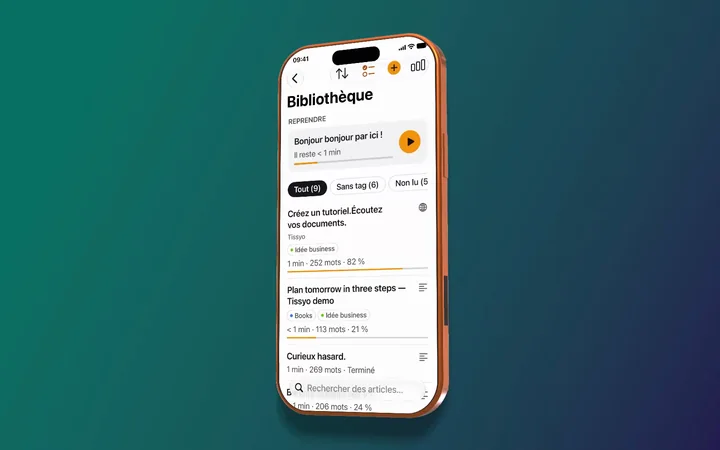
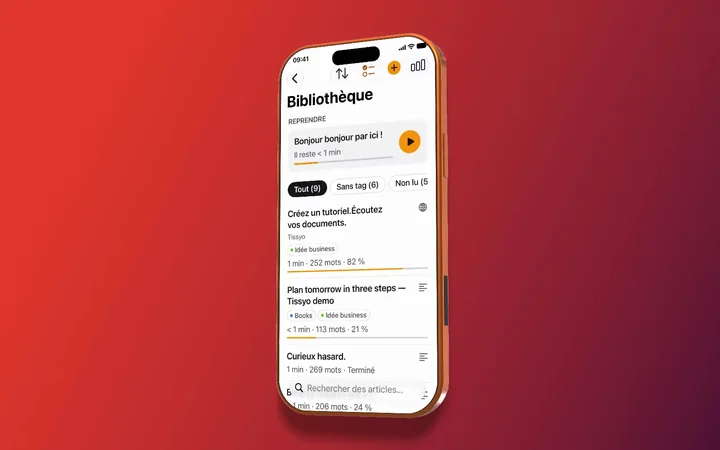
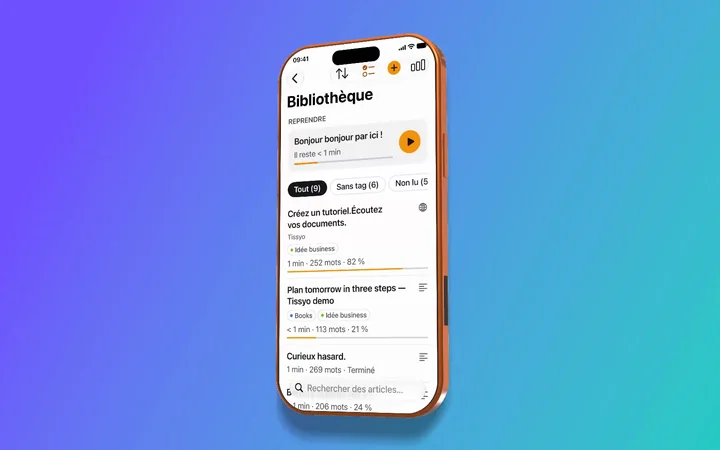
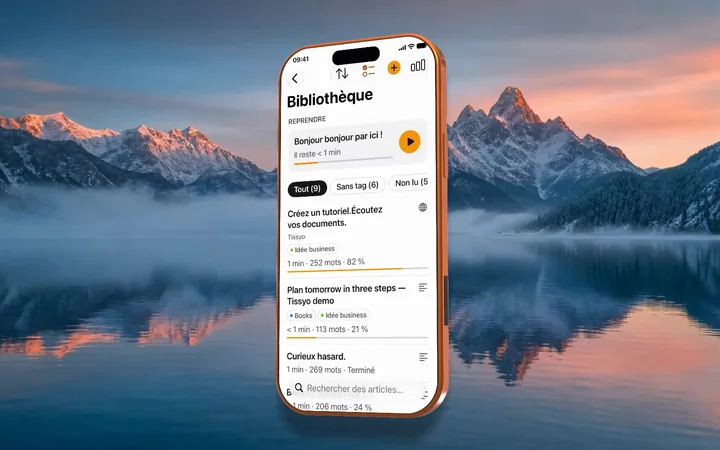
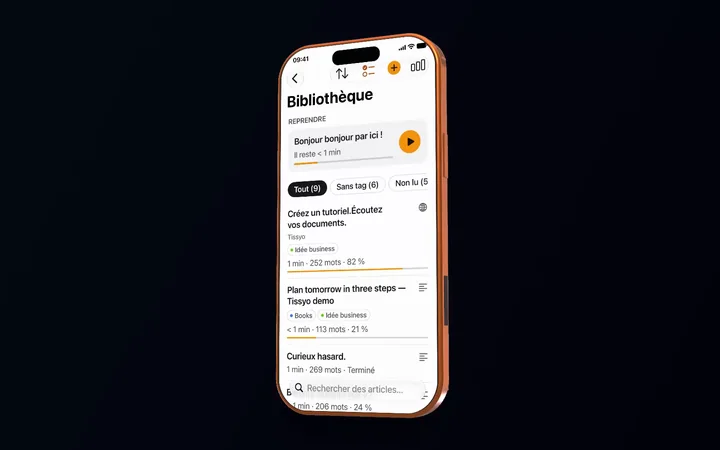
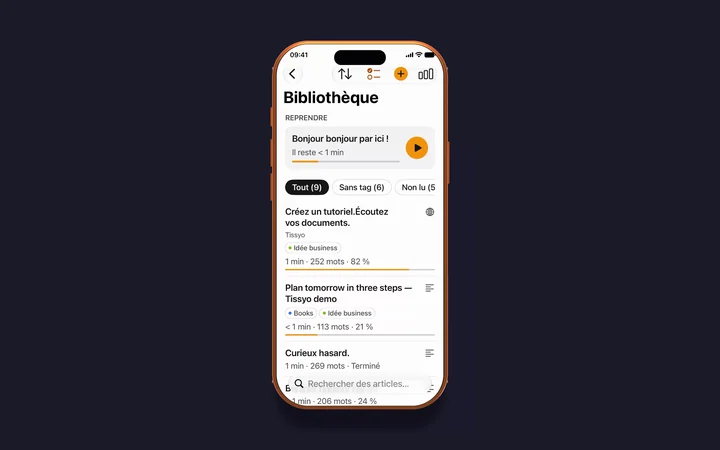
What it's forDress up an iPhone or iPad recording plugged into your Mac.
Which devicesApple iPhone and iPad in several finishes: iPhone 17 Pro Max, iPhone Air, iPad Pro 13-inch, iPad mini. The full list is under Composition › Device › Model.
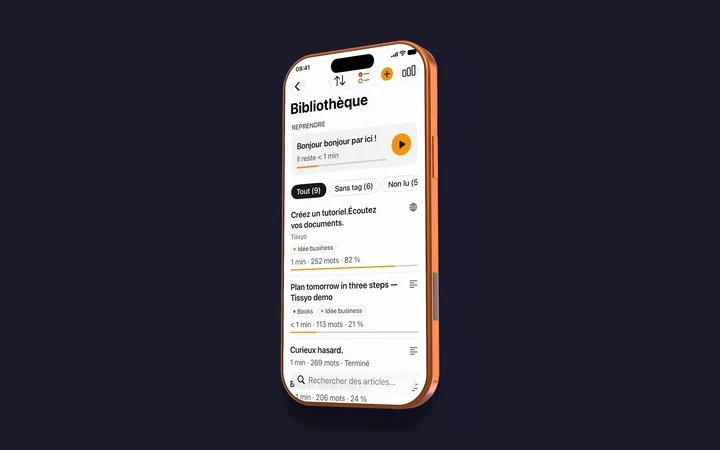
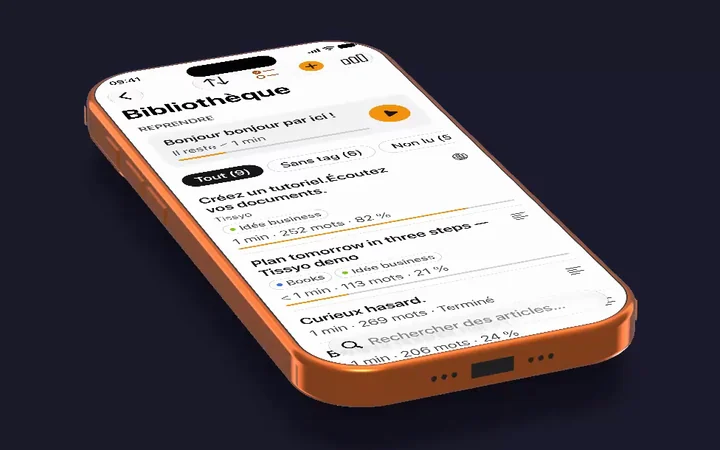
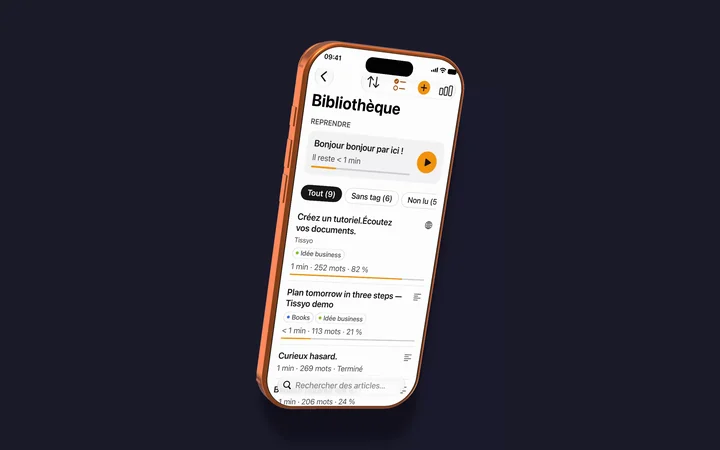
Which settingsFour poses, free tilt, animated entry and exit, shadow, reflections and orientation.
Which platformMac only. On Windows you capture, annotate, title and edit the demo.
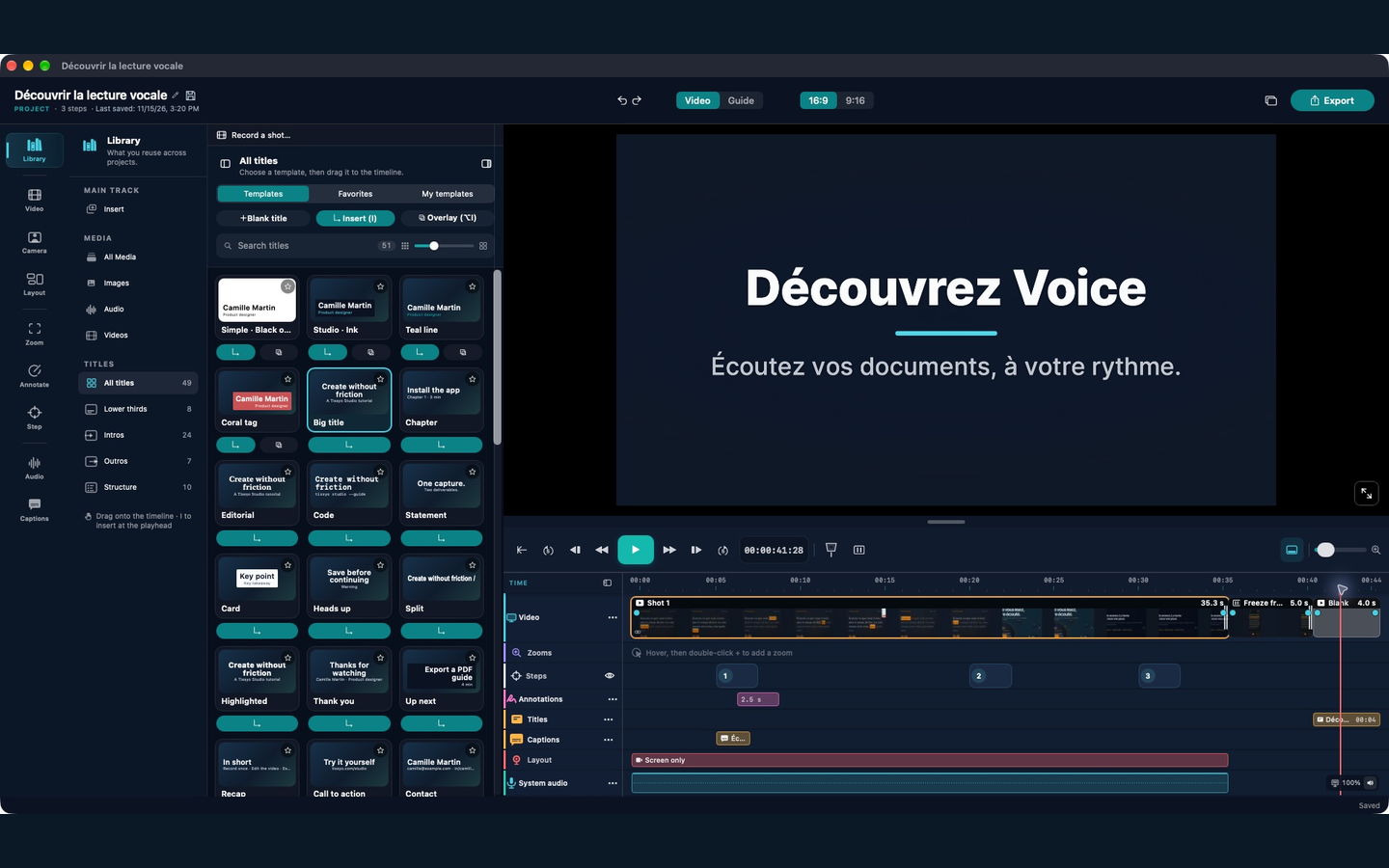
Every title is customisable: text, colours (text, accent, background, veil), font, entry and exit animation, placement. Save it in “My templates” to reuse it from one project to the next.
Animate with keyframes
Place a keyframe where the angle, framing or zoom should change: Studio interpolates between them, and zoom goes up to ×10. With a mockup, the zoom tilt adds to the device pose.
How do I make an app demo video for an iPhone app?
On Mac, plug in the iPhone, record the flow with demo data, place it in a 3D mockup, add an opening title, a zoom and an arrow on the key gesture, then export an MP4 in 16:9 for your site and in 9:16 for an ad.
Are the 3D mockups available on Windows?
No. 3D iPhone and iPad mockups are Mac-only, because they dress recordings of a connected iPhone or iPad. On Windows you can still capture, annotate, add titles and edit your demo.
Which device models are offered?
Apple iPhones and iPads, with several finishes per model: for example iPhone 17 Pro Max, iPhone Air, iPad Pro 13-inch and iPad mini. The list grows with Studio versions; you can see it in Composition › Device › Model.
Can I animate the camera movement precisely?
Yes, with keyframes: place them on tilt, framing and zoom, and Studio interpolates between them. Zoom goes up to ×10.
What should an app demo show first?
The result: what the user gets. Open on the final screen with a one-sentence title, then show the gesture that leads there, with a zoom or an arrow at the right moment.
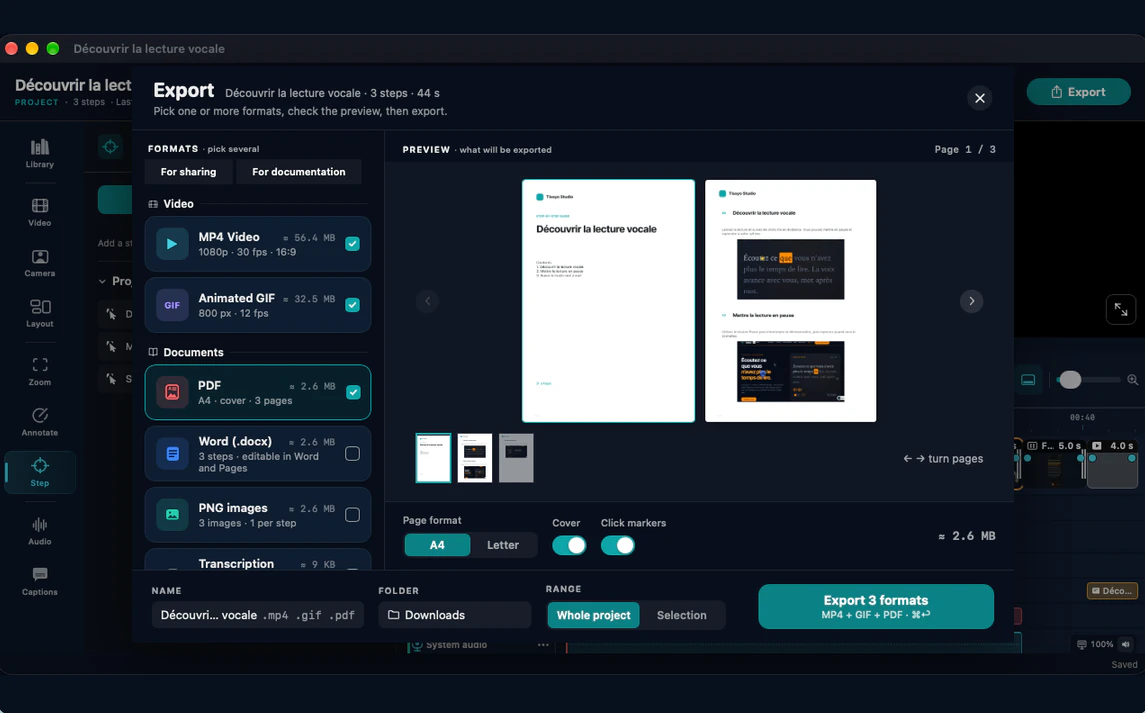
Capture the right take, trim your shots and annotate what matters before moving to the rest of the edit.
Tissyo is the trading name of Vincent MARY, sole trader · SIRET 503 420 325 00030
Cookies and privacy
We respect your privacy.
We use cookies that are necessary for the site to work. With your consent, we also use audience measurement and advertising cookies. You can accept or reject these optional cookies at any time.
The chat sends your question, the page you are viewing and the technical data required by Tissyo Support. Your email is requested only to notify you of a reply.
 Studio
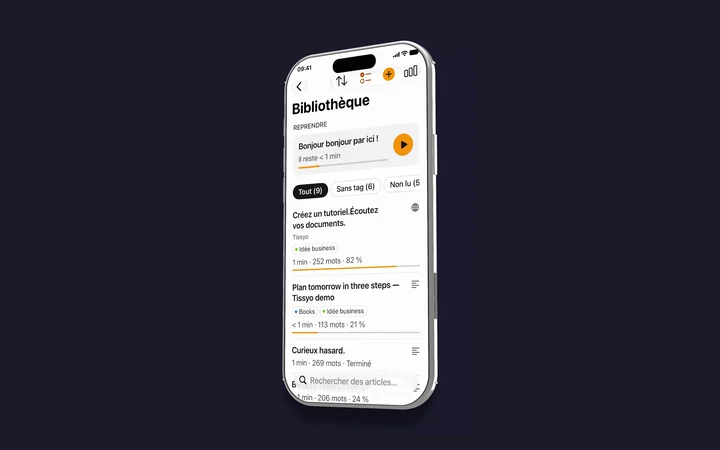
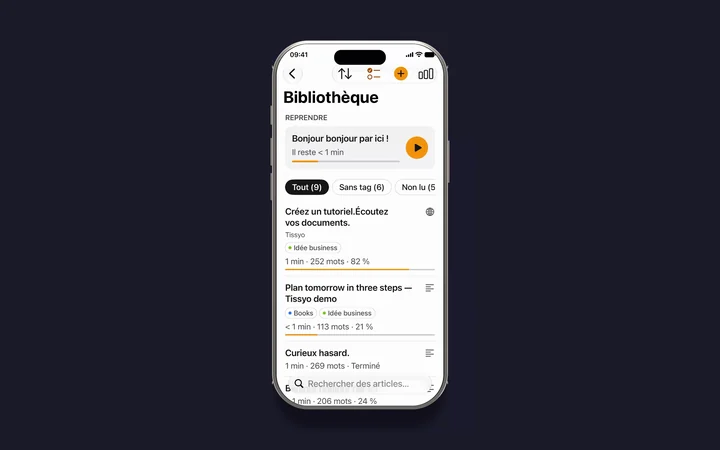

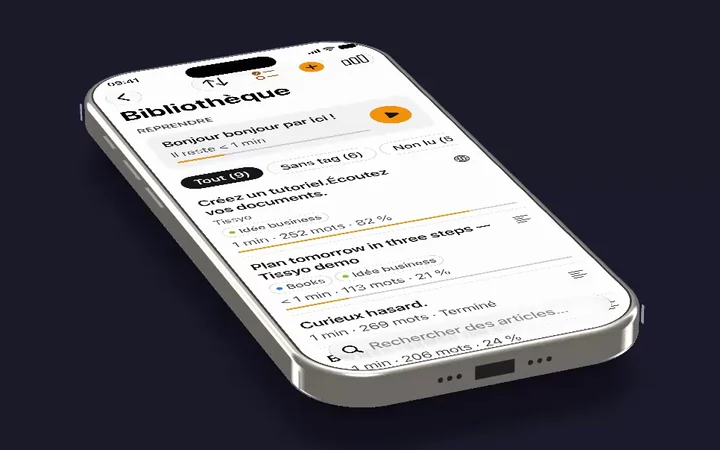
 Record the flowPlug the iPhone into the Mac and play the flow with demo data (Mac).