 Studio
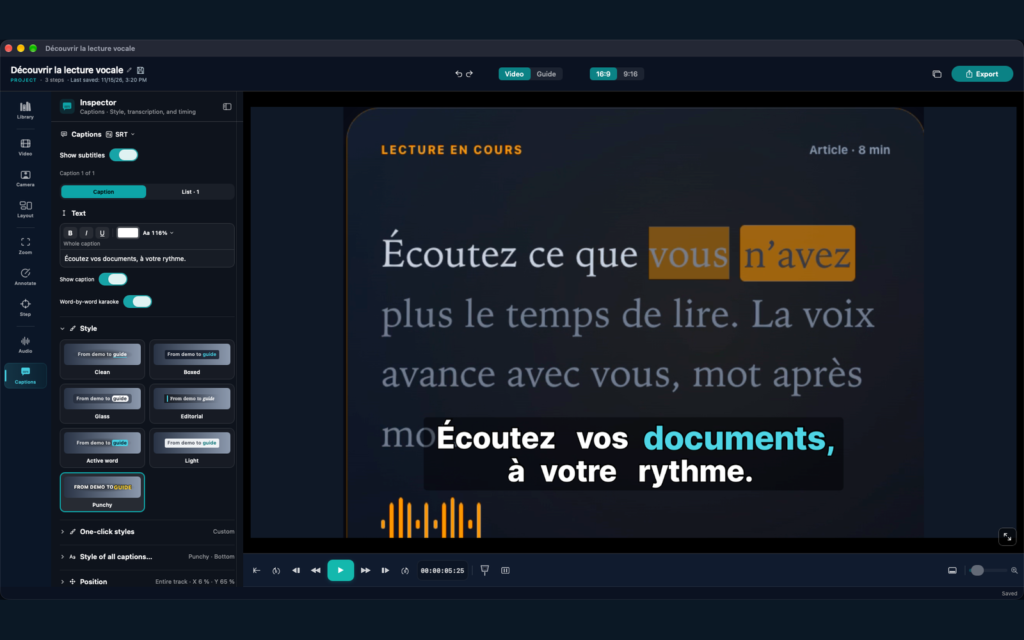
In short: Tissyo Studio generates subtitles from your narration, then lets you correct them and personalize their look. Reread product names and shortcuts, keep blocks short, and test the video without sound before publishing.
Subtitling makes a tutorial understandable without sound and facilitates the follow-up of a precise manipulation. However, transcription is only a starting point.
Generate from narration
Tissyo Studio transforms the voice into synchronized subtitle blocks. You can correct the text and adjust the blocks directly in the project.
On Mac, Export → Transcription saves the spoken words as a text or Word file. Timecodes are optional, and you can export a transcript without creating captions first. Availability depends on the languages supported by your Mac.
Adapt reading to the screen
Keep blocks short, adjust the rhythm, and place the subtitles where they do not obscure the action or important elements of the interface.
Create visual coherence
Personalize the look of the subtitles (typography, background, contrast) so that every tutorial stays consistent with your identity.
Reread what the transcription cannot guess
Check product names, acronyms, keyboard shortcuts and technical terms first. Split long sentences at the moment the action changes and keep natural punctuation. Subtitles should complement the screen, not hide the button or area the viewer needs to watch.
Test real accessibility
Play the video without sound, then on a smaller screen. Check contrast, size, number of lines and display time. An accurate subtitle that disappears too fast is still unusable. Also keep a written guide when the content needs to be searched or skimmed quickly: in Tissyo Studio, the same recording also produces a step-by-step guide.
Subtitle a tutorial in five steps
- Record with a clear narration: speak at a steady pace, close to the microphone, and avoid talking over system sounds.
- Generate the subtitles: Tissyo Studio turns the narration into synchronized blocks.
- Correct the text: fix names, shortcuts and punctuation, and remove filler words.
- Personalize the look: choose typography, background and contrast that match your other tutorials.
- Watch without sound: check every block against the action on screen, then export.
A practical rule: one block should match one idea or one action. When the narration says “open the menu, then choose Export”, two short blocks are easier to follow than a single long one. Viewers read the subtitle, look at the click, and move on without pausing the video.
Mistakes to avoid
- Publishing the raw transcription: filler words, repetitions and misheard terms distract from the action.
- Covering the interface: a subtitle placed over the menu being clicked hides the very step it describes.
- Overloading the screen: if a block feels long, split it or shorten the sentence rather than shrinking the text.
- Forgetting the vertical format: in a 9:16 export, check that subtitles stay readable and do not collide with the zoomed area.
FAQ
Do I have to write the subtitles myself?
No. Tissyo Studio generates them from your narration. You then correct the text and personalize their look in the project.
Are subtitles still useful if the tutorial has a voice-over?
Yes. Many people watch without sound, in an open office or on a phone. Subtitles also help viewers follow menu names and shortcuts exactly.
Are captions included in the free trial?
Yes, every feature is included during the trial. On Mac, eligible Apple Accounts can start a 14-day free trial after confirming the subscription in the App Store. Nothing is charged during the trial, then it renews at $12.99/month or $89.99/year in the US unless cancelled.
Then compare MP4, GIF and PDF exports to choose how to share the tutorial.