One recording. Switch the layout to 9:16, move the webcam and titles for that format, then export with the platform preset: YouTube, Facebook and X in 16:9; TikTok and Instagram Reels in 9:16.
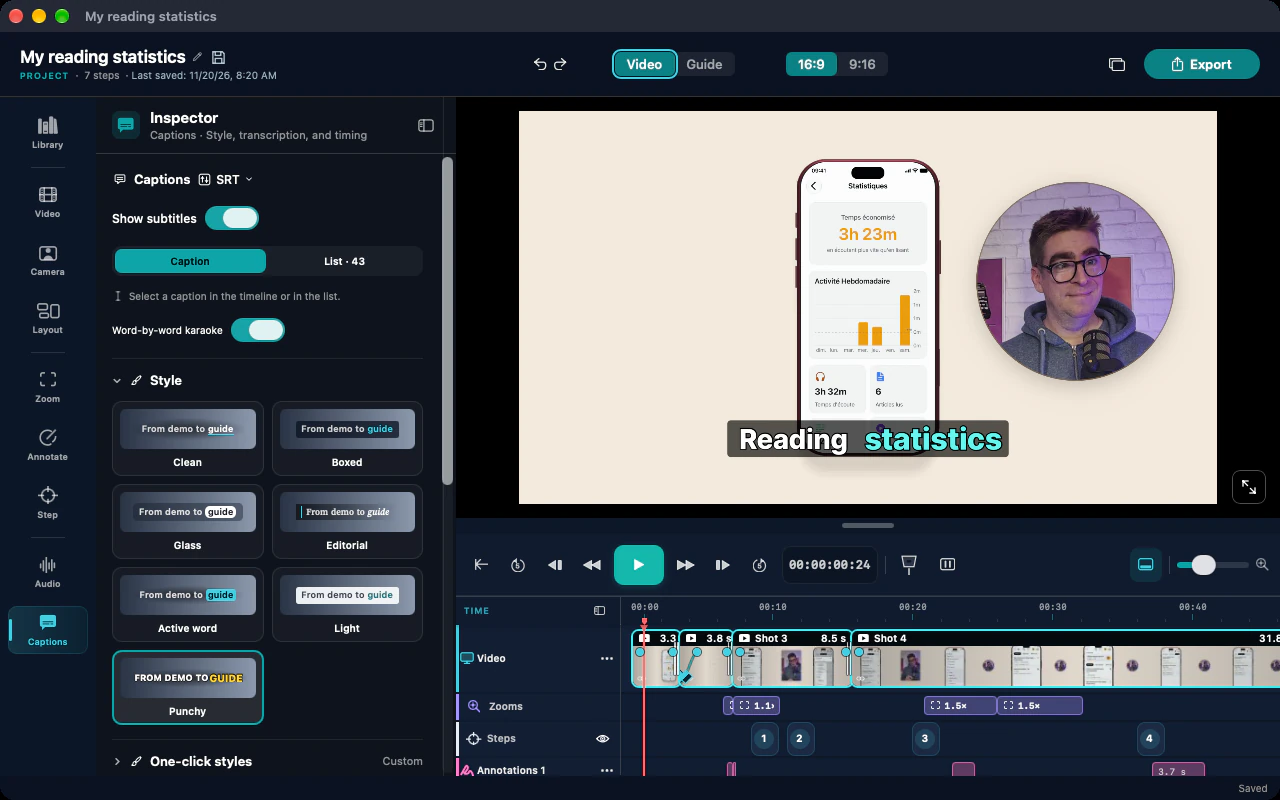
BubbleThe camera as an overlay, with adjustable shape and size.
Adaptive splitSide by side in landscape, stacked in portrait.
Full frameThe camera alone, full frame.
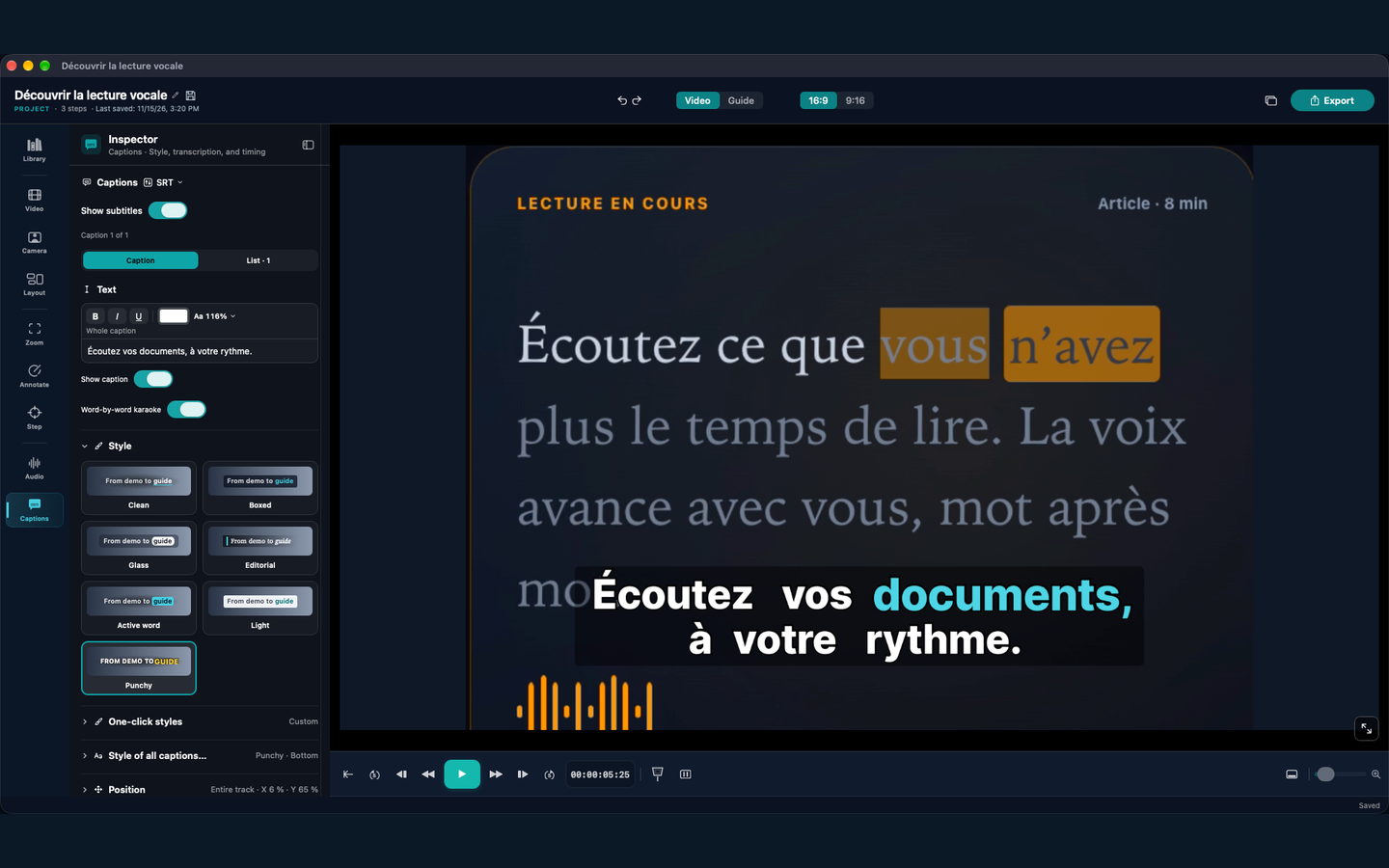
In 16:9: a title and karaoke captions.
How it works
From capture to publishing, in three moves.
1Capture screen and webcamScreen, window or area, microphone and webcam. ⌃⌥V shows or hides the camera during the take (Mac).
2Caption in your own styleCaptions follow your voice. Active word and Punchy animate each word as karaoke.
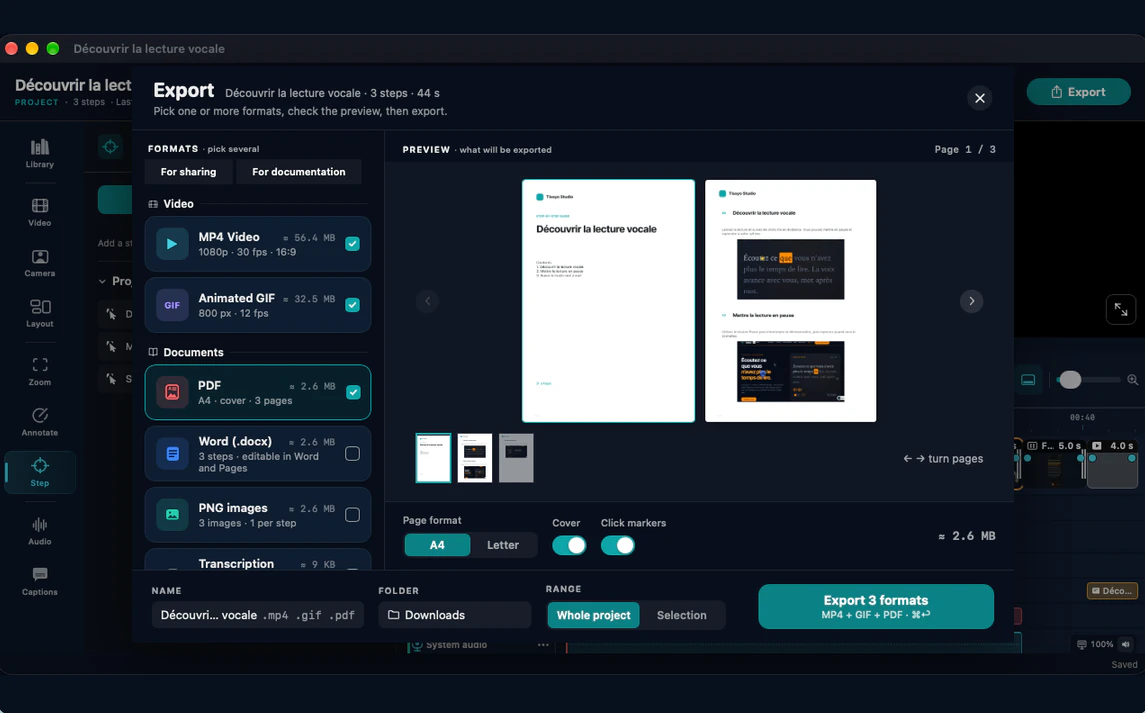
3Export both versionsYouTube, Facebook and X in 16:9; TikTok and Instagram Reels in 9:16. The SRT file exports alongside.
Studio refuses a colour that would drop the contrast below 4.5:1 (WCAG AA). Captions are generated from your voice on Mac and Windows; caption translation is Mac-only with Apple Intelligence (macOS 26, compatible Mac).
Frequently asked questions
How do I record my screen for YouTube on Mac or Windows?
Pick the screen or a window, turn on the microphone and webcam, record, then export an MP4 in 16:9 with the YouTube preset. Add the SRT file if you want to upload your own captions.
Can I publish the same video in 9:16?
Yes. Switch the layout to 9:16, check the placement of the webcam and titles in that format, then export with the TikTok or Instagram Reels preset.
Are the captions automatic?
They are generated from your voice, on Mac and on Windows (AVX2 processor required on Windows). Review them: proper nouns and technical terms often need a fix.
Which export formats does Studio offer?
MP4 (1080p, 30 frames per second, 16:9 or 9:16), animated GIF, an SRT file for captions, and a PDF or Word guide if you also want a written version.
Does Studio translate captions?
On Mac, with Apple Intelligence (macOS 26 on a compatible Mac). This feature does not exist on Windows.
Show your app in use with a screen recording, titles and annotations. On Mac, stage the demo in a 3D iPhone or iPad mockup.
Tissyo is the trading name of Vincent MARY, sole trader · SIRET 503 420 325 00030
Cookies and privacy
We respect your privacy.
We use cookies that are necessary for the site to work. With your consent, we also use audience measurement and advertising cookies. You can accept or reject these optional cookies at any time.
The chat sends your question, the page you are viewing and the technical data required by Tissyo Support. Your email is requested only to notify you of a reply.
 Studio

 Capture screen and webcamScreen, window or area, microphone and webcam. ⌃⌥V shows or hides the camera during the take (Mac).