 Studio
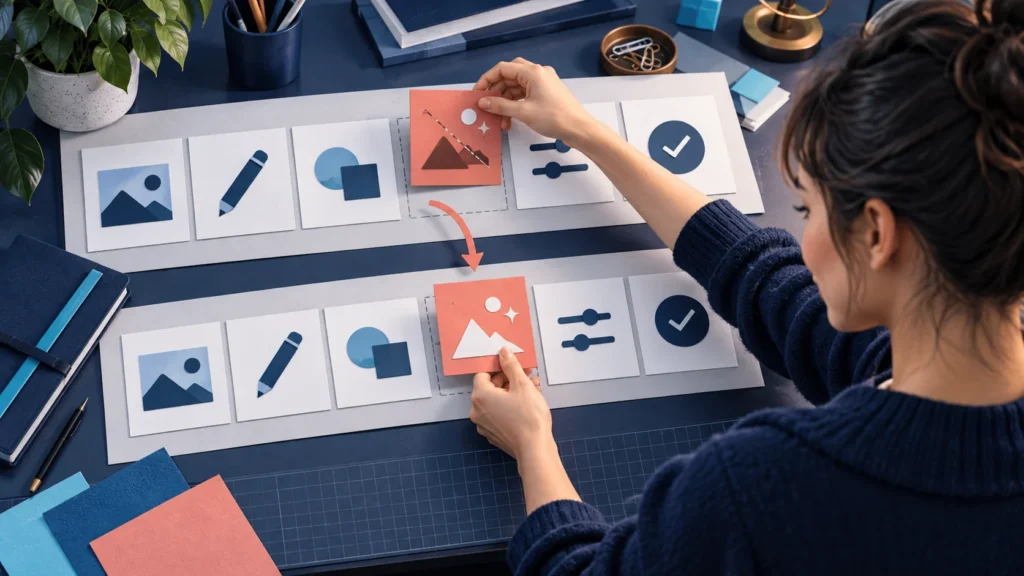
In short: run through the task to find the sections that no longer match, then replace only the sequence involved. Update the written guide afterwards and retest the task as a new viewer would.
The button moved. One software update has made your ten-minute tutorial feel old.
Do not record everything again by default. Run through the task first. Find out which sections still help and which now lead viewers astray.
1. Find exactly what changed
Start from the opening screen. Note the moved menu, renamed button or extra step. Check the final result too: an interface can look familiar while permissions or choices have changed.
2. Replace a task, not an entire tour
A section on sharing a document is easier to replace than a long video mixing installation, sharing and advanced settings. Keep those tasks separate when planning a new tutorial.
If only sharing changed, update that section. Then watch the transitions before and after it. Viewers should not have to guess what is missing.
In Tissyo Studio: label changed or screen changed?
In Tissyo Studio, a single recording gives you the video and its step-by-step guide: recorded clicks help create the guide steps. How you fix it depends on what moved.
- Only a label changed (renamed button, retitled menu): edit the guide directly. Titles, instructions, notes and images stay editable. Check the label visible in the video too: if needed, add an explanatory annotation or replace that sequence.
- The screen or the click order changed: record that task again on its own. Studio uses the recorded clicks to prepare the new zooms and guide steps.
- Only the narration is out of date: voice, Mac audio, webcam and screen remain separate sources after capture. You rework what changed without redoing the rest.
3. Keep the files you will need next time
Save the working project, videos, screenshots and step text. Keeping only the final export may leave you with more to rebuild.
With Tissyo Studio, a project can still be opened and exported, even without an active subscription.
Record the software version, platform and verification date too. These details will help you find the right source later.
4. Update what surrounds the video
Does the written guide still name the old button? Does a screenshot show the old menu? Check the text, images, internal references and links leading to the replaced section.
If you publish several formats, export them all again after the fix: MP4 video, animated GIF and PDF guide, plus the transcript if you share it. Tissyo Studio can produce several formats in one click, so an up-to-date video never ships with an outdated PDF.
Mistakes that make you fix things twice
- Recording the whole tutorial again for one renamed button.
- Fixing the video but forgetting the written guide, screenshots or thumbnail.
- Deleting the working project after the final export.
- Testing the new section alone, without watching the step before and the step after.
5. Try it once more as a new viewer
Start from a clean state with the access described in the tutorial. Follow only the instructions shown. If you have to fill a gap from memory, add the missing step.
For your next update, keep a short checklist: changed section, related resources, task retested. Choose the right deliverable with this comparison of MP4 video, animated GIF, and PDF guide exports.
FAQ
Do you need to re-record a whole tutorial when the interface changes?
No. Run through the task and replace only the sequences where the screen, the click order or the result has changed. A renamed label can often be fixed in the written guide.
How can you tell which parts of a tutorial are out of date?
Follow the tutorial from the opening screen without filling any gap from memory. Every point where you hesitate or the screen looks different is a section to replace.
What should you keep to make the next update easier?
The working project, videos, screenshots and step text, along with the software version shown and the date you checked it.