MAC · IPHONE · APPLE WATCH

Stay in control of the session, even away from your Mac.

Advance slides, launch an activity and adjust the timer from iPhone or Apple Watch. Your Mac remains the main control desk.

The iPhone and Apple Watch apps are included, even on the Free plan.

SESSION IN PROGRESS Controls in sync
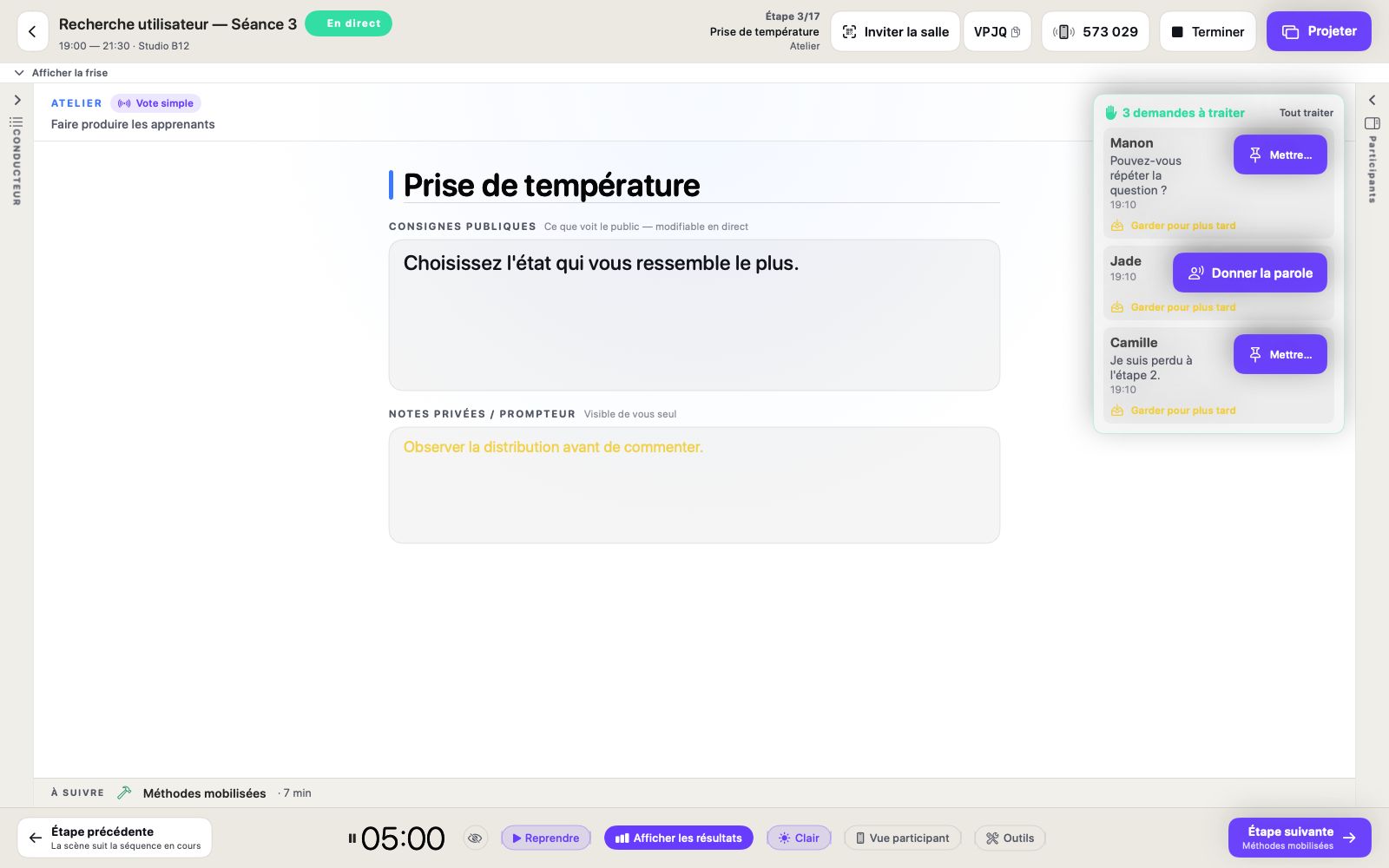
Tissyo Interact projection controlled remotely
Tissyo Interact remote on iPhone
From iPhone
Advance, launch, time.
IN THE ROOM

You stay with the room, not with the controls.

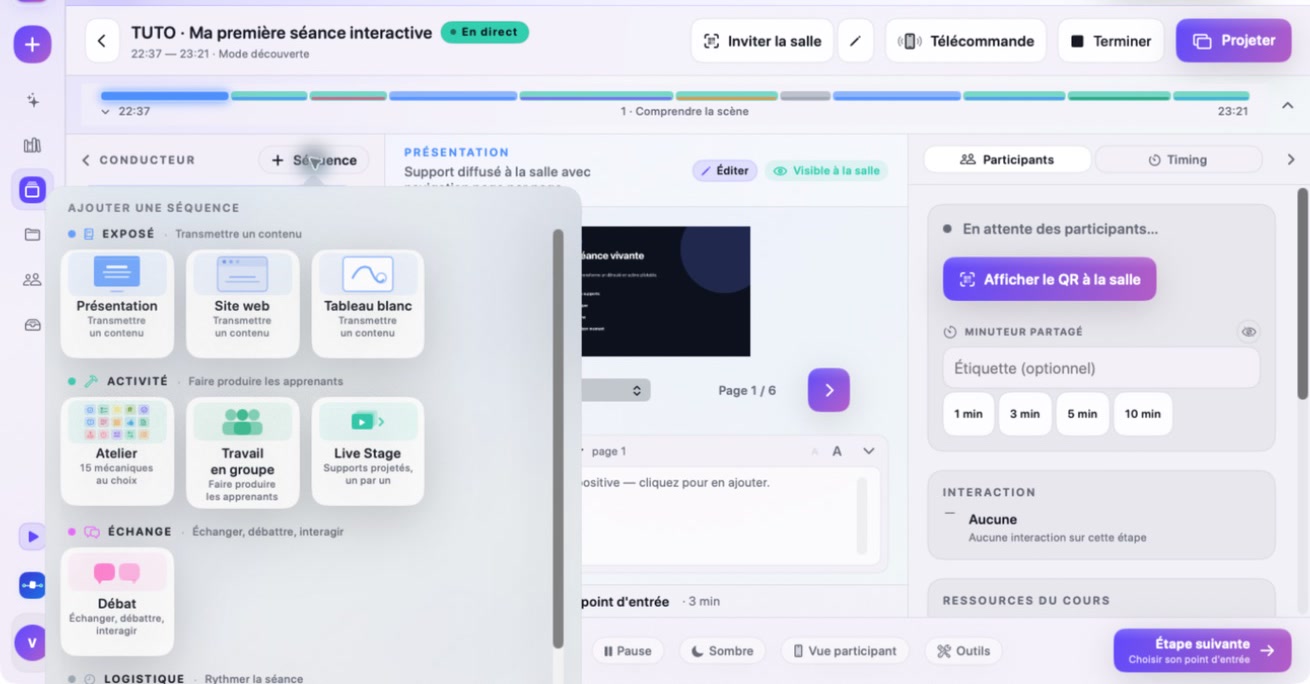
Open “+ Sequence” in the console, add the activity or moment the group needs, then pick up again without interrupting the projection.
Continuous projectionPace under controlOn-the-fly sequence
Live Tissyo Interact cockpit with the Add sequence menu open

Move around the room without giving up control.

From iPhone or Apple Watch, advance, start the timer and trigger common actions. The Mac remains the full console and your fallback. Both apps are included; simply test pairing on the venue's local network.
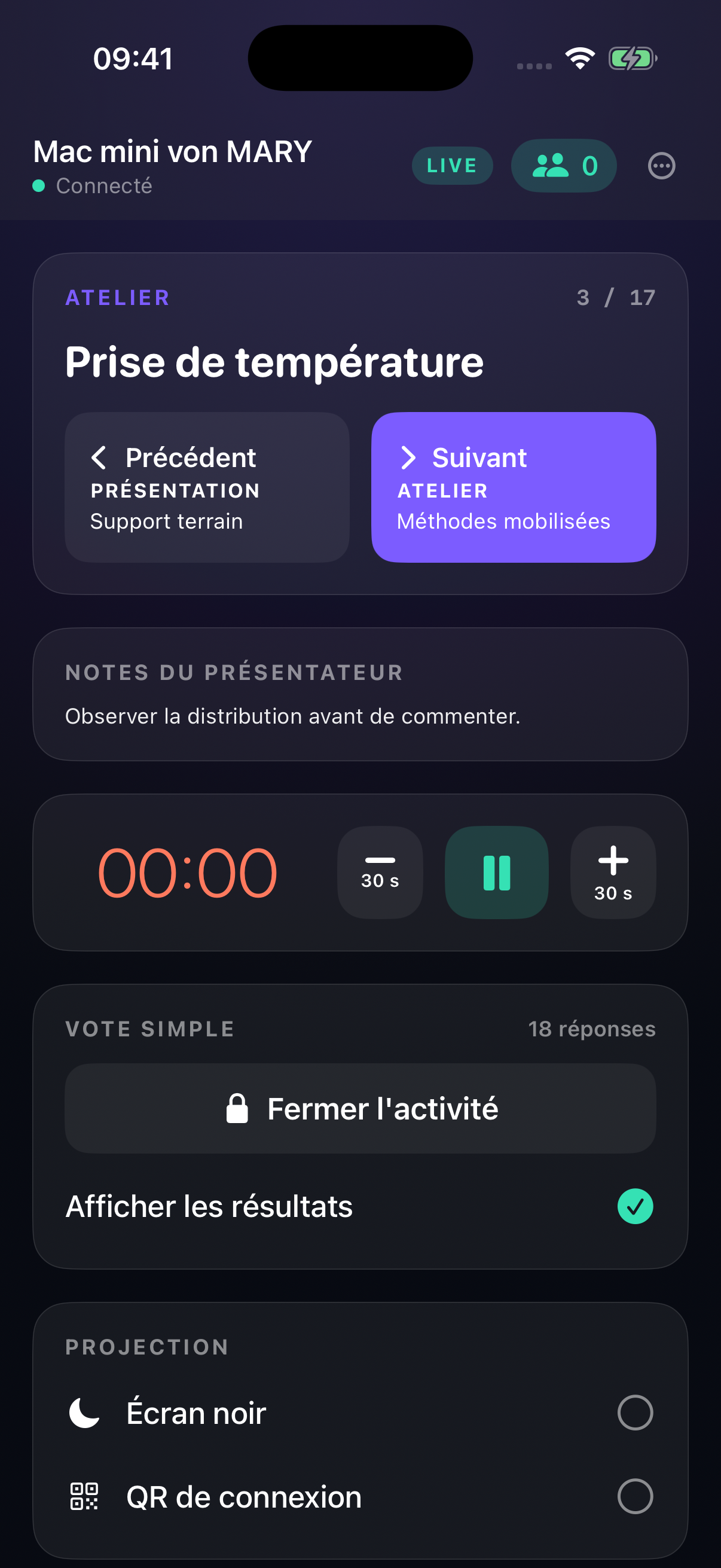
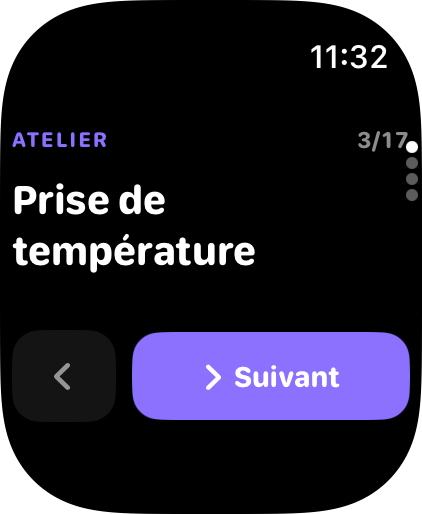
iPhoneApple WatchIncluded
iPhone remote screen
iPhone · full view
Apple Watch remote screen
Apple Watch · quick action

You keep control of the room.

Form groups, display a random draw, then use advanced moderation with Pro when the session calls for it.
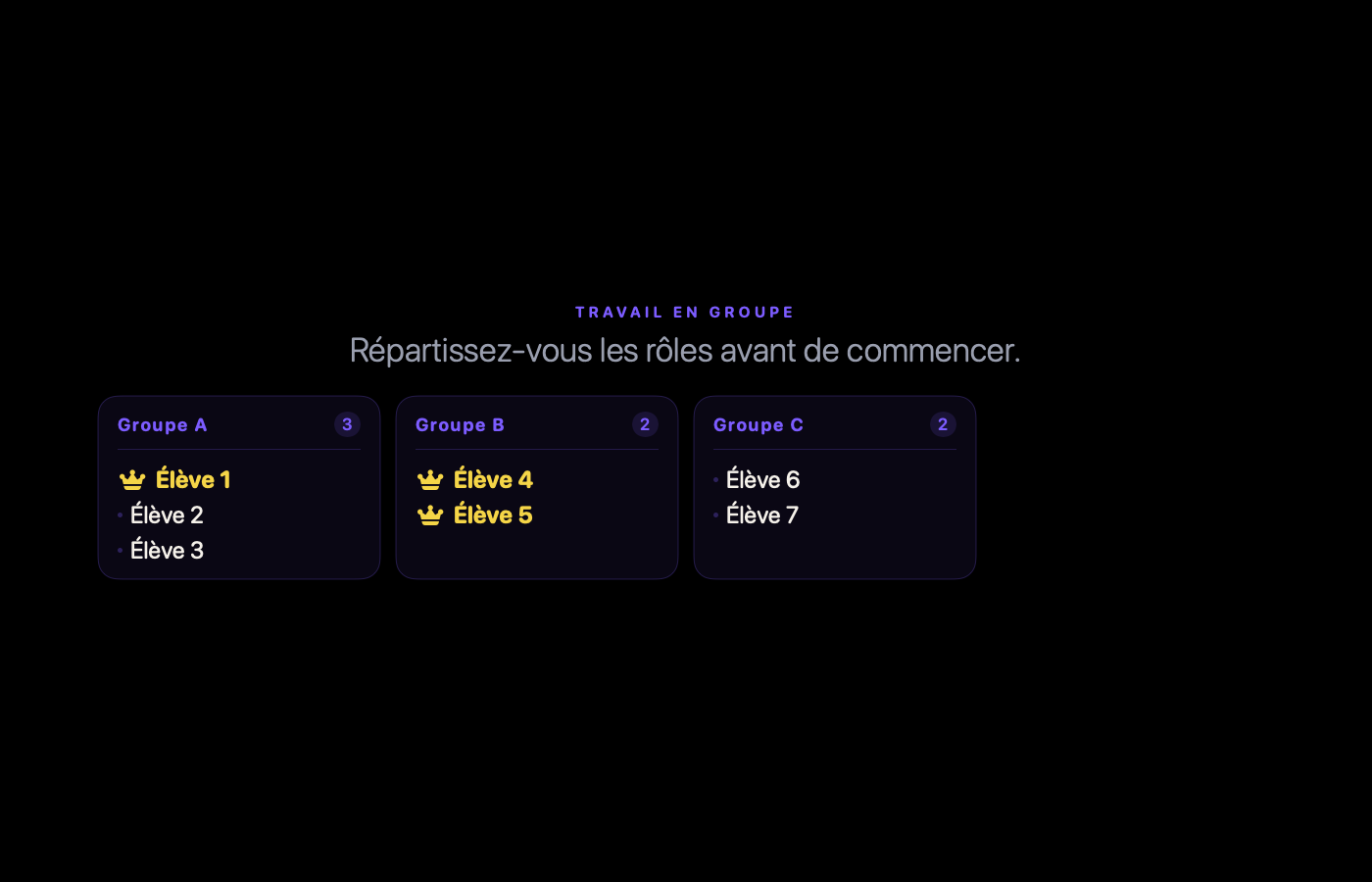
Répartition de groupes projetée avec des participants fictifs dans Tissyo Interact
Groups

In one click

Random allocation, balanced by group size, then projected so everyone can find their group.
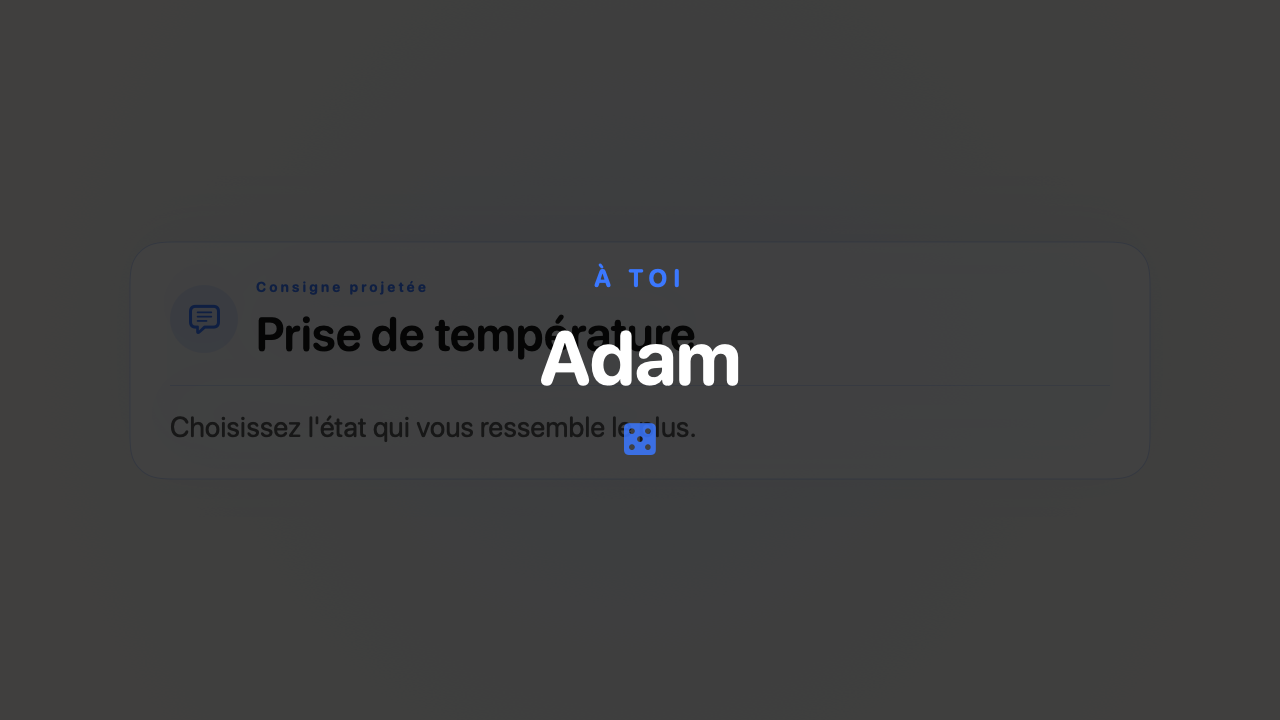
Tirage au sort projeté avec un prénom fictif dans Tissyo Interact
Random draw

No hands up?

Display a random draw on the big screen, then decide how to invite the selected person. The draw makes the selection visible; it does not guarantee participation.
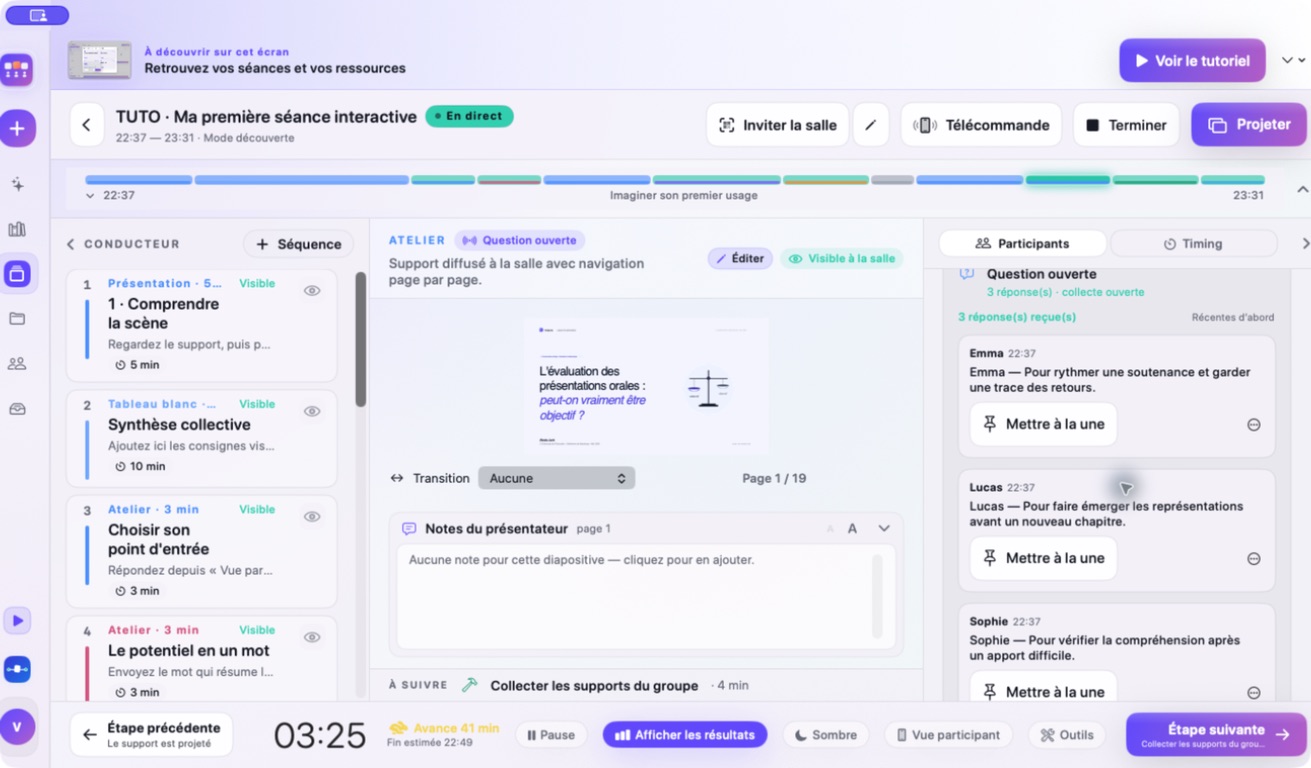
Tissyo Interact cockpit with three responses in the Participants panel LIVE RESPONSES
Pro moderation

Before projection

Responses arrive in the Participants panel. Publish them, feature one, or hide it before it reaches the projection. You can also block a participant for the session.

A raised hand, with useful context.

On their phone, the participant taps “?”, then “Raise hand”. They can add a message of up to 140 characters or send the signal on its own. In the console, the request appears with useful context: invite them to speak, feature the message, or save it for later. The displayed identity depends on the details provided by the participant.

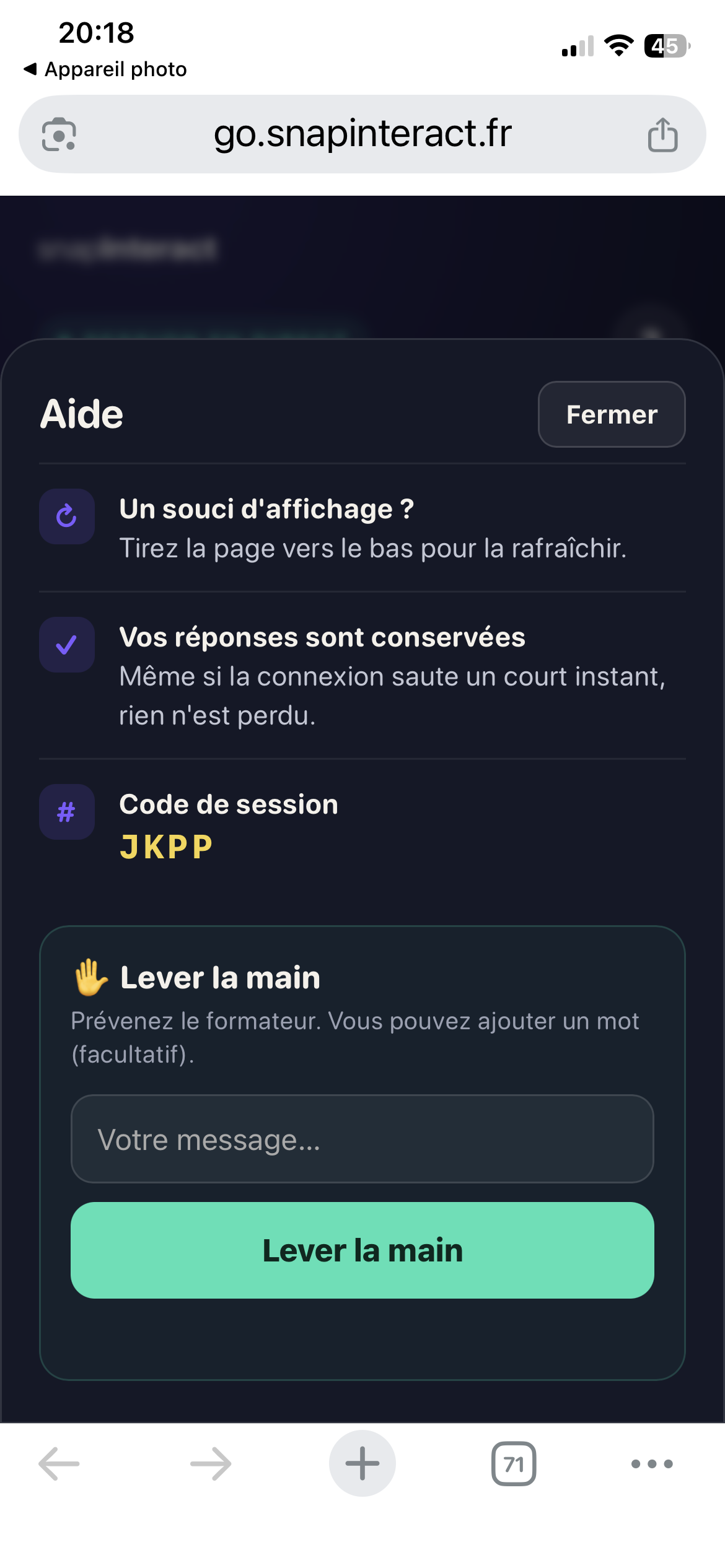
Quiet signalOptional messageHandle or save
1 · ON THE PHONE Participant phone showing the question-mark button available during a session
The “?” stays available throughout the session.
2 · OPTIONAL MESSAGE
Raise hand panel with an optional message field and send button — French-language interface
A signal on its own, or a short question.
Tissyo Interact cockpit showing three requests to handle, including two written questions — French-language interface
The request appears without leaving the run sheet.

PPTX, PDF or whiteboard.

Start from a blank page, import a PDF page by page or bring in a .pptx file. Check the result after conversion: text, images, simple shapes, backgrounds and positions are carried over when the file allows it, but charts, SmartArt and animations are not. .ppt and .key files are not supported.
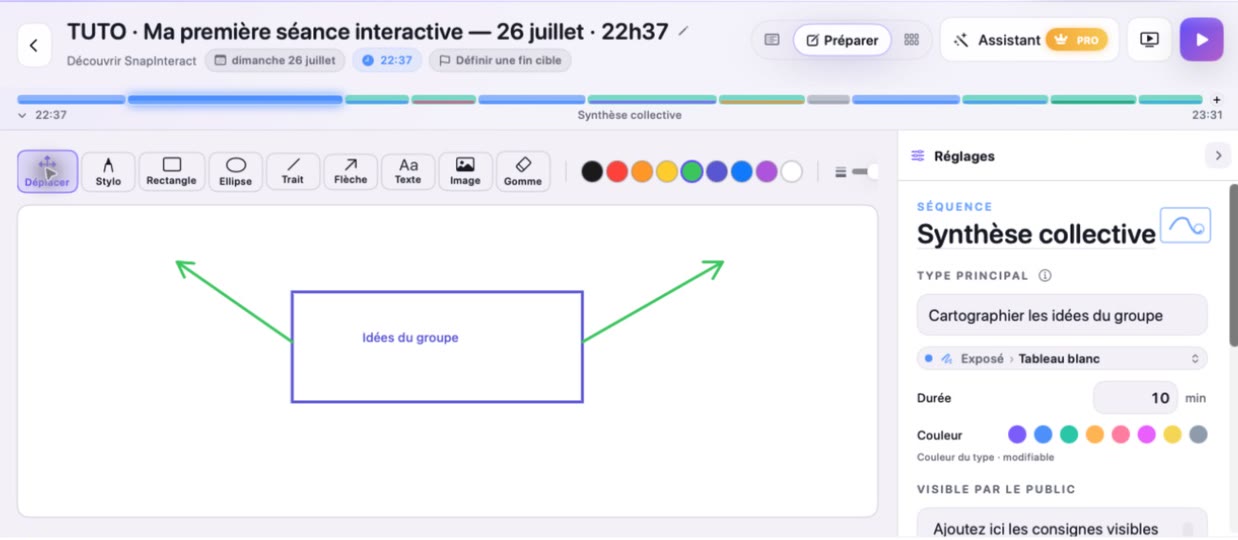
PPTXPDFWhiteboard
Tissyo Interact whiteboard in Prepare, showing drawing tools, colors, a simple diagram and sequence settings — French-language interface
Pen, shapes, text, images and layers: the whiteboard stays inside the session.
A REAL SESSION, NOT A DEMO

Ready to try Tissyo Interact in the room?

One Mac to run the session. One QR code to join. No account to create.

START FOR FREE Available on the Mac App Store.
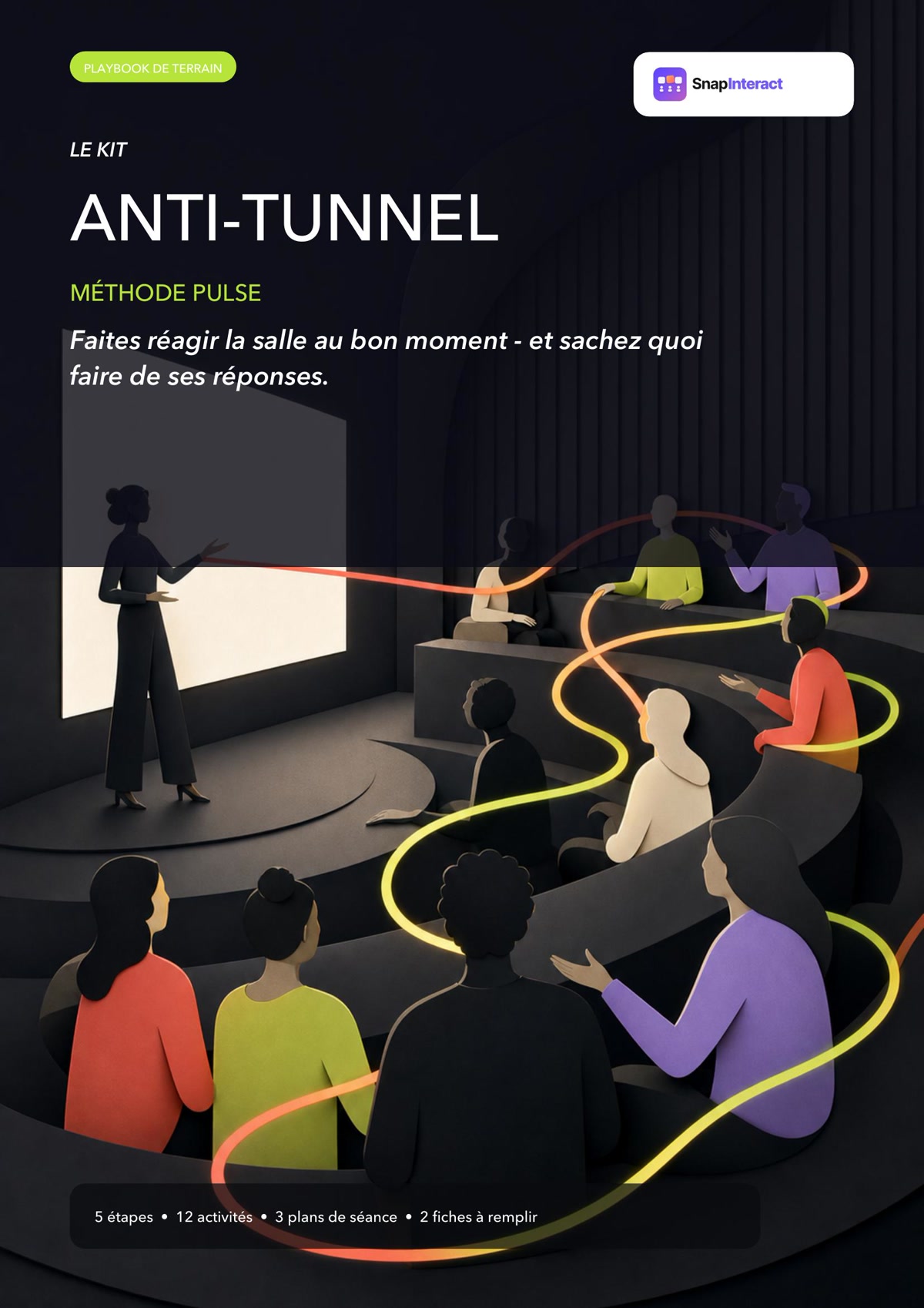
Couverture du Kit anti-tunnel, méthode PULSE

Free guide · 43 pages

Involve participants without redoing your materials.

Prepare 3 useful interactions with the PULSE method, 12 activations and 3 conductors ready to adapt.

Tissyo Interact

Make each lesson come alive.

Start with your content, add useful activities and involve the entire class in three seconds — without an app or participant account.

Free to discover. Trial Pro without credit card.