 Interact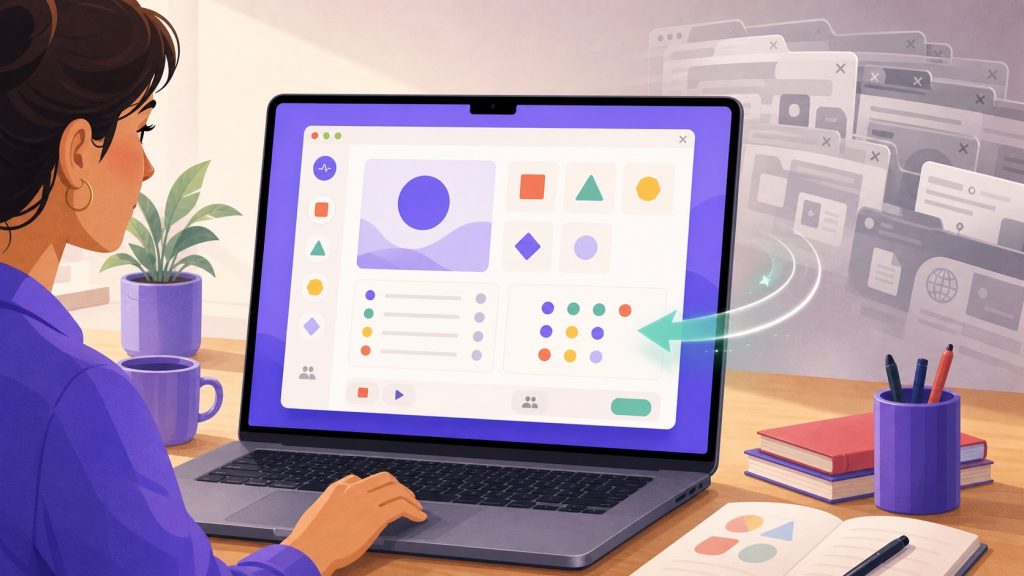
There is a moment every trainer knows: the moment you give up. You saw a promising demo, told yourself you would try it for your next session… and that evening, faced with a tool that wants an account, a tutorial and its own home-grown vocabulary, you close the tab and go back to your usual slides. That is not a lack of motivation — it is a rational calculation: your prep time is limited, and a tool that costs an evening before producing anything starts with a heavy handicap. Tissyo Interact was designed against that very moment. Here is, concretely, what happens in the first two minutes.
Minute zero: three templates, not a blank page
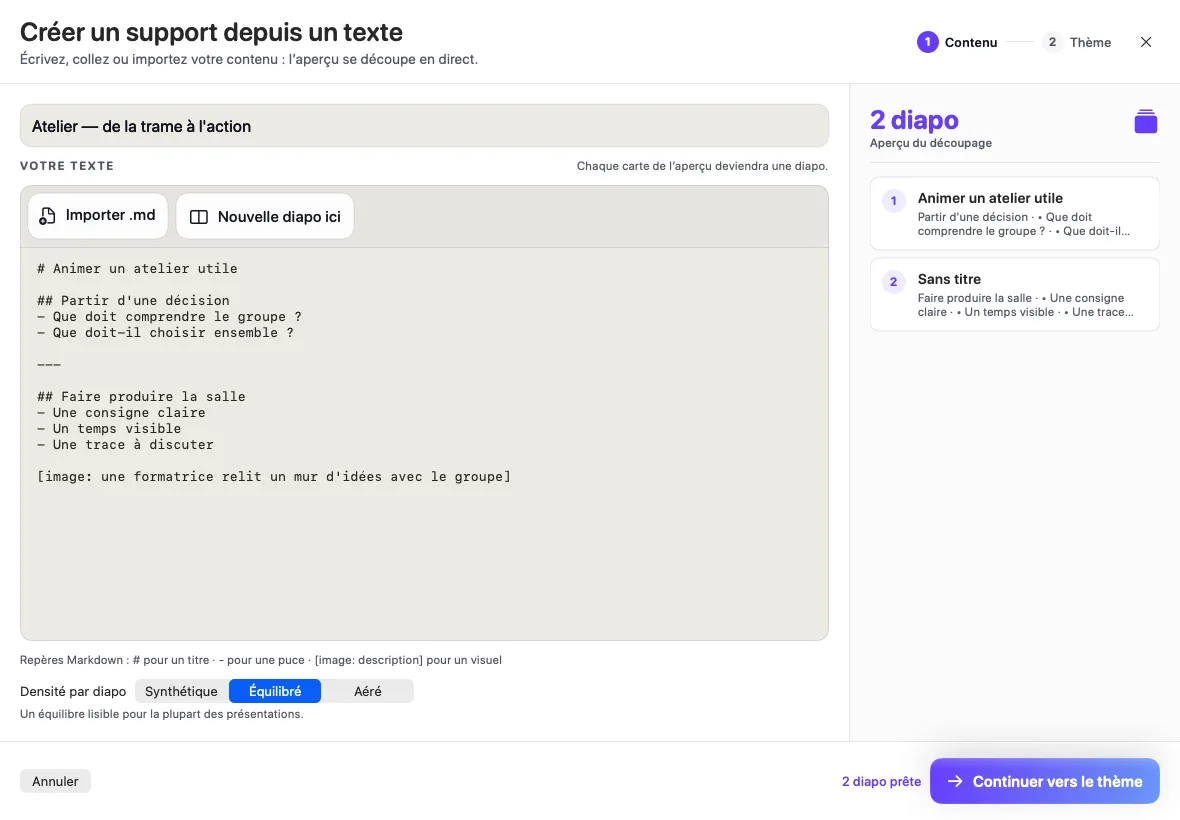
On opening, Tissyo Interact does not leave you facing an empty canvas. Three starter templates reach out to you, each matching a way of teaching: Lecture, for a session carried by your slides and punctuated with interactive moments; Workshop, for a session built around participants’ output and discussion; Interactive Review, for a training session driven by questions. You click, and you already have a structure: ordered sequences, activities pre-placed where they belong, a flow that holds together.
These templates are not straitjackets, they are starting points. Everything can be reordered, deleted, replaced. But the psychological difference is huge: instead of asking yourself where to start, you ask yourself what to adjust — and that second question is infinitely faster to answer. To pick the right template for your context, the product page details what each one contains.
Minute one: your existing material, as is
You do not have to rebuild your content. Drag your PDF into the window: it becomes the session’s slides. A PowerPoint? It is converted on import, and your slides are there. No material at all, or a wish to build live? The whiteboard acts as a blank slide. The guiding idea is simple: your years of accumulated material are an asset, not a migration problem. The article import your PDFs and PowerPoints walks through the details, but the essence fits in one sentence: what you already have is enough to start.
Once the material is in place, inserting an interactive activity between two slides takes one click: a quiz after chapter two, a word cloud as an opener, a poll before the break. Fourteen activities are available, from the quick poll to the work drop-off, and they slot into the flow exactly like one more slide. Your session stays ONE session — not a slide deck on one side and an interaction tool on the other, with all the on-stage juggling that split imposes.
Minute two: it is saved, it is ready
There is no Save button to hunt for, because there is no saving to do: everything is saved automatically, continuously, in a file on your Mac — with a backup copy. Close the app mid-preparation, reopen it on the train: you pick up exactly where you were. That detail sounds trivial; it is not. The fear of losing work is one of the reasons people do not dare to just try a new tool. Here, trying costs nothing: nothing gets lost, and your data stays on your Mac.
A teaching tool should be judged on its second minute: if by then you have produced nothing, you will not come back. If you already have a session that holds together, you are equipped.
On the day, starting is just as short
The two-minute promise also holds in the room. You open the session, a QR code appears: participants scan it with their phones and join in their browser — no app to install, no account to create, and a short 4-letter session code for anyone whose camera is being difficult. While they arrive, you watch the connection counter climb. Thirty seconds later, your first activity is running. No session should ever start with ten minutes of collective tech support.
iPhone and Apple Watch included, same Apple ID
The second time-waster is being stuck behind your Mac to click. Tissyo Interact includes an iPhone and Apple Watch remote — not as a paid add-on, not as a separate subscription: included, with the same Apple ID. The iPhone discovers your Mac by itself on the local network, pairing takes a six-digit code, and you are free to walk between the tables while advancing slides, launching the next quiz or driving the timer from your wrist. The details of remote control are on the remote control page.
- Three starter templates: Lecture, Workshop, Interactive Review — a ready-made structure before you have even thought about it.
- Direct import of your material: PDF, PowerPoint converted on the fly, or a whiteboard to start from scratch.
- Automatic saving and a backup copy: nothing to save, nothing to lose, everything on your Mac.
- Participants connected in seconds: QR code or short code, in the browser, no app and no account.
- iPhone and Apple Watch remotes included with the same Apple ID.
The learning curve is not inevitable
There is a stubborn assumption: a powerful teaching tool must take long to learn, and a simple one must be limited. It is a false dilemma. Complexity can live inside the tool without being imposed on the user: templates absorb the structural decisions, import absorbs the content migration, automatic saving absorbs the file management. What stays visible is your subject matter and your teaching choices. The free version is there so you can judge for yourself: it is very generous, with a monthly cap of eight interactive activities — and if you want it all open, the Pro trial lasts 14 days, no credit card. Details are on the pricing page. Stopwatch in hand, your first interactive session is two minutes away.
Frequently asked questions
Do I have to rebuild my existing material to get started?
No. You drag your PDF or PowerPoint (converted on import) into the window and it becomes your session's slides. Interactive activities then slot in between your slides with one click. A whiteboard is also available to start from scratch.
Do participants need to install anything?
No. They scan a QR code (or type a short 4-letter session code) and join the session in their phone's browser, with no app and no account.
Are the iPhone and Apple Watch apps a paid extra?
No, they are included. You install them with the same Apple ID as on your Mac, the iPhone discovers the Mac automatically on the local network, and pairing takes a six-digit code.
What happens if I close the app in the middle of preparing?
Nothing bad: everything is saved automatically and continuously in a file on your Mac, with a backup copy. You pick up exactly where you left off, even offline.